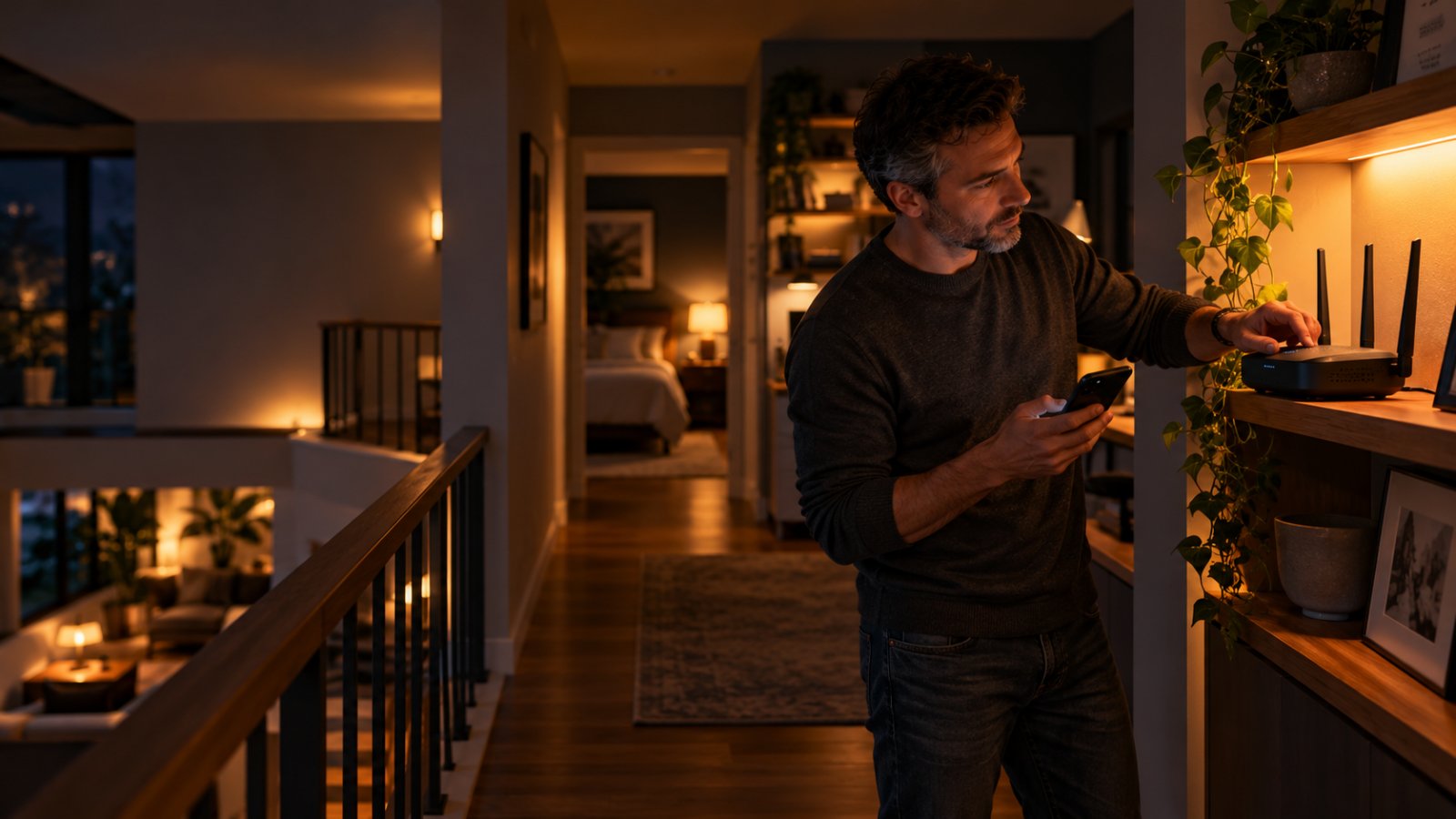
The simplest way to improve WiFi range is to move your router to an open, central location, position its antennas correctly, and choose wireless settings that suit your home. A few placement changes can make a bigger difference than buying new equipment.
If you are trying to understand how to setup a wireless wifi router for optimal range, start with the rooms where the connection fails. A router that works perfectly in the living room may struggle to reach an upstairs bedroom, garage, or outdoor security camera. That does not necessarily mean the router is defective.
This guide explains how to position and configure your router, choose between 2.4 GHz and 5 GHz, reduce interference, and test coverage properly. Each step tells you what to change, what a successful result looks like, and when to try something else.
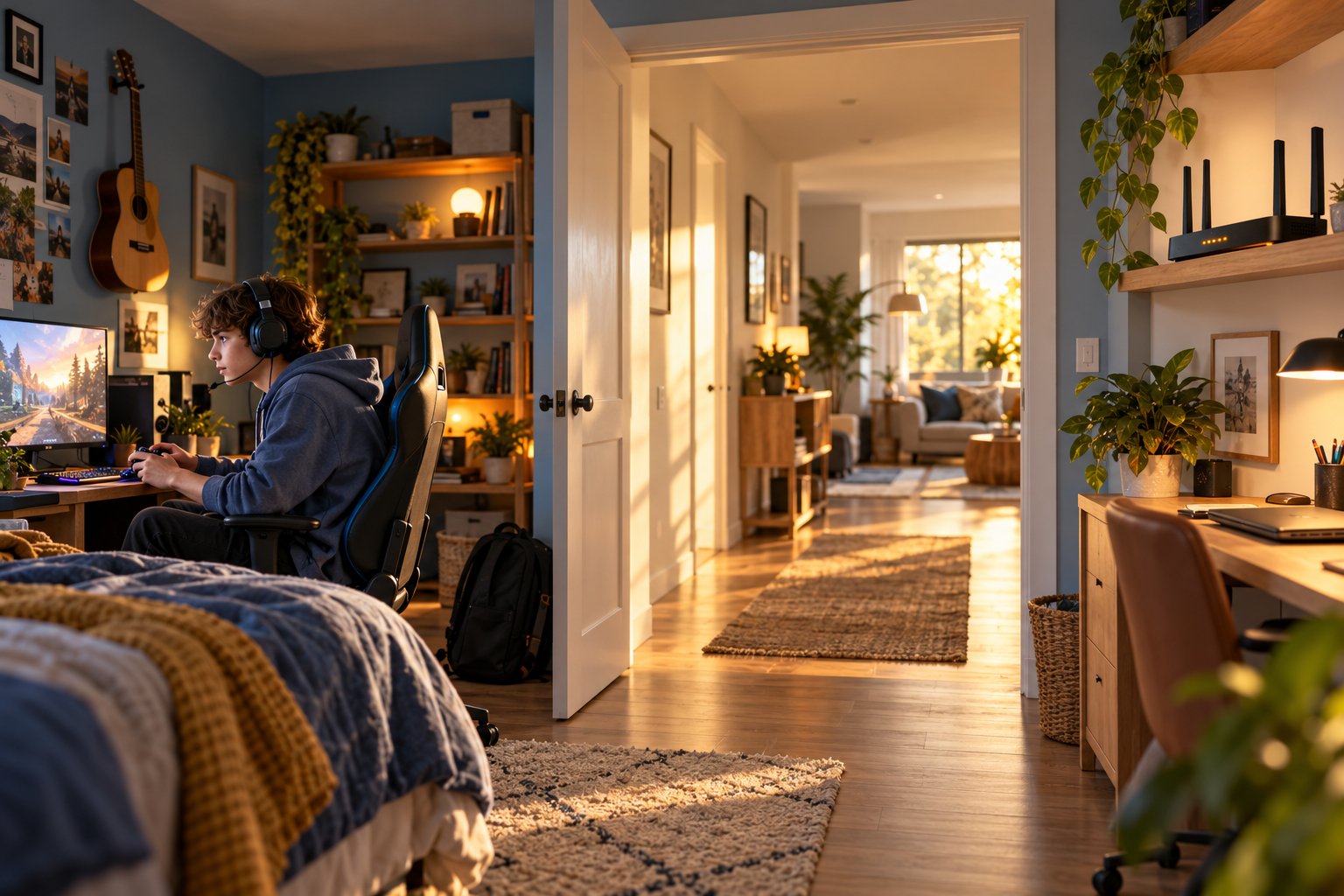
How to Setup a Wireless WiFi Router for Optimal Range: Quick Answer
A good wireless router setup starts with physical placement, not complicated settings.
Follow these six rules:
-
Place the router near the center of the rooms that need WiFi.
-
Keep it on an open shelf or suitable wall mount, away from large metal objects and enclosed cabinets.
-
Position external antennas according to the manufacturer's instructions.
-
Use 2.4 GHz for devices farther away and 5 GHz for devices that need faster connections nearby.
-
Start with automatic channel selection. Change channels only when interference is causing a problem.
-
Test WiFi in the rooms where you actually use your devices.
A router tucked behind a television may give you excellent speed while sitting on the sofa. Walk into a bedroom separated by two walls, however, and the connection may become unreliable.
The problem is not always internet speed. It may be the distance, wall materials, neighboring wireless networks, or the location of the router itself.
That distinction matters because each problem needs a different fix.
If your WiFi signal is weak upstairs, paying for faster internet will not necessarily improve it. If the signal is strong but video calls freeze whenever another device uploads files, changing the antenna angle probably will not help.
The steps below show you how to identify the cause before changing anything.
What You Need Before Starting
You do not need specialist networking equipment to set up a home router properly.
Have these items ready:
-
Your wireless router and its original power adapter.
-
The modem or internet gateway supplied by your internet provider.
-
An Ethernet cable.
-
A phone or laptop for setup.
-
Your router's installation instructions.
-
Your current WiFi name and password, if replacing an existing router.
-
Any connection details supplied by your internet provider.
-
A place to record the changes you make.
You should also know which devices matter most.
A laptop used for video meetings needs a stable connection. A smart television needs enough bandwidth for streaming. An outdoor security camera needs reliable access from its mounting location.
Those requirements may point to different problems.
Before disconnecting an existing router, photograph the cable connections. If the internet stops working during setup, the photograph can help you restore the previous arrangement.
Also check whether your modem and wireless router are separate devices.
Some internet providers install one gateway that combines the modem and router. Others supply a modem that connects to your own router.
Knowing which equipment you have will make the connection steps much easier.
Check Whether Your Internet Connection Works
Before adjusting WiFi settings, find out whether your internet connection is performing normally.
If your router has an available LAN port, connect a laptop with an Ethernet cable.
Turn off the laptop's WiFi temporarily so the test uses the wired connection.
Open a speed testing service and run a test when other devices are not downloading large files.
Record the result.
Next, disconnect Ethernet, enable WiFi, and run the test again while sitting near the router.
Compare the results.
If both wired and wireless speeds are consistently poor, investigate the modem, internet provider, router performance, or network congestion first.
If Ethernet works well but WiFi becomes slow in distant rooms, focus on wireless coverage.
If only one laptop has a problem while other devices work normally, check that laptop's WiFi adapter, software updates, and saved network settings.
This simple comparison prevents you from spending time on router placement when the problem is somewhere else.
Identify Your Home's Coverage Problems
Walk through your home with the phone or laptop you normally use.
Check the connection in your bedroom, kitchen, living room, and work area.
If you have upstairs rooms or a garage, check those too.
For each location, pay attention to three things:
-
Does the device remain connected to WiFi?
-
Do websites and applications respond normally?
-
Does the connection become unreliable at particular times?
You may discover that the WiFi works in every room except the upstairs office.
Or perhaps the signal is strong throughout the house, but streaming becomes slow after dinner.
These are different situations.
A weak upstairs connection may be caused by the floor structure or router placement.
Evening slowdowns may involve neighboring WiFi networks, heavy household traffic, or the internet provider.
Write down the problem rooms before proceeding. You will use those same locations to check whether each adjustment actually helps.
Step-by-Step Router Setup for the Best Range
Work through the following steps in order.
Do not move the router, change channels, and adjust antennas all at once.
Change one thing, test it, and keep the change only if it helps.
That makes troubleshooting much easier.
Step 1: Choose a Central Router Location
What to do
Start by looking at the rooms where you spend the most time online.
Your router should be reasonably close to those rooms, with as few major obstacles as possible between them.
In a small apartment, a shelf in the main living area may work well.
For a larger house, a central hallway or open family room may provide more even coverage.
In a two-story property, consider a location near an open staircase if the cable arrangement allows it.
You do not need to put the router at the exact geographical center of the building.
For example, if one side of the house contains storage rooms and the other has bedrooms, a home office, and a living room, prioritize the occupied area.
What you should see
After moving the router, the connection should improve in at least some rooms that were previously difficult to reach.
Test the same phone in the same locations.
If your upstairs bedroom previously had an unreliable signal, check whether websites load more consistently.
What to watch for
Do not automatically place the router beside the front door because that is where the internet cable enters.
A router installed at one end of a long home has to transmit through more walls to reach the opposite end.
If the modem is fixed in an inconvenient location, consider using an appropriate Ethernet cable between the modem and router.
Avoid modifying fiber-optic wiring unless your provider specifically supports the change.
Step 2: Raise the Router and Remove Obstructions
What to do
Place the router on an open shelf, desk, or suitable wall mount.
Keep its ventilation openings clear.
Avoid putting it:
-
Inside a closed television cabinet.
-
Behind a large television.
-
Under a desk against the wall.
-
Next to a metal filing cabinet.
-
Behind an aquarium.
-
On the floor behind furniture.
-
Beneath piles of books or other objects.
A router placed openly on a bookshelf will often have a better wireless path than one hidden inside a cabinet.
You should also keep it away from excessive heat and moisture.
What you should see
The router should have a clearer path toward nearby rooms.
If furniture or a metal cabinet was blocking the signal, devices behind that obstacle may connect more reliably.
What to watch for
Higher is not always better.
Putting the router in an attic may introduce new obstacles, including insulation and flooring materials.
The goal is an open location that serves the devices you actually use.
Do not cover the router with decorations to hide it. Restricting airflow can also cause overheating.
Step 3: Connect the Router to Your Modem Correctly
What to do
Locate the router's WAN or Internet port.
Connect an Ethernet cable from the modem's Ethernet output to that port.
Then connect the router's power adapter.
Follow the manufacturer's startup sequence.
If you are using a separate modem and router, the connection usually follows this arrangement:
-
Internet service enters the modem.
-
The modem connects to the router's WAN port.
-
The router provides WiFi and local Ethernet connections.
Give the modem and router time to establish their connections.
What you should see
The router's power indicator should show normal operation.
Its internet or WAN indicator should show the expected status for that model.
Your phone or laptop should detect the router's wireless network.
What to watch for
A router can broadcast WiFi even when it has no internet connection.
If your phone connects but displays a message indicating no internet access, check the modem and WAN cable.
Also confirm that the internet connection settings match your provider's requirements.
Many connections use automatic IP addressing through DHCP. Others require PPPoE credentials or specific network settings.
If your internet provider supplies a gateway that already performs routing, determine whether the additional router should use router mode or access point mode.
Using two routers without planning the configuration can create double NAT and complicate certain applications.
Step 4: Open the Router Settings and Configure WiFi
What to do
Connect a phone or laptop to the router using Ethernet or its default wireless network.
Find the setup address in the router's manual or on its label.
Open a browser and enter that address in the address bar.
Sign in or complete the initial configuration wizard.
If the router asks for an administrator password, create a strong one that is different from your WiFi password.
Next, find the wireless settings.
Depending on the model, the menu may be called WiFi, Wireless, WLAN, or Network Settings.
Choose a network name that family members can recognize.
Then create a strong WiFi password.
What you should see
After saving, the router should broadcast the new wireless network.
Your phone may disconnect when you change the network name or password.
Open its WiFi settings and reconnect using the new details.
What to watch for
Do not use the same password for WiFi access and router administration.
The WiFi password lets devices join the network.
The administrator password lets someone change the router's configuration.
If you are replacing an old router, you can consider reusing your previous WiFi name and password to simplify reconnection.
However, some devices may still need their saved network settings updated.
For the ROOXIS AC1200 router, the ROOXIS AC1200 setup guide provides model-specific instructions for its setup wizard and administration interface.
Use the instructions for your exact router rather than assuming every model has the same menus.
Step 5: Configure Router Antennas for Better Coverage
What to do
Check whether your router has adjustable external antennas.
If it does, begin with the arrangement recommended in the manual.
For many routers with omnidirectional antennas, positioning the antennas vertically is a reasonable starting point for coverage across the same floor.
Do not point every antenna toward the room with the weakest connection.
Most ordinary router antennas do not direct WiFi like a flashlight.
Their signal patterns depend on the antenna design and orientation.
After setting the antennas, test your phone in the problem room.
Then adjust one antenna slightly if the manufacturer supports that arrangement.
Test again.
What you should see
A useful adjustment should improve the connection in the intended area without creating a noticeable problem elsewhere.
You might find that a bedroom receives a more stable signal after changing an antenna's angle.
You might also see no difference.
Both outcomes are useful because they tell you whether antenna position is contributing to the problem.
What to watch for
Do not force a fixed antenna to move.
Some routers use internal antennas that cannot be adjusted separately.
For those devices, change the position or orientation of the entire router only when the manufacturer's instructions permit it.
Avoid constantly adjusting antennas based on a single slow webpage.
Test the same device several times before deciding that an adjustment worked.
How to Configure Router Antennas in a Multi-Story Home
A common mistake is assuming that every antenna should point toward the upstairs bedroom.
Many external router antennas produce a signal pattern that spreads more strongly around the antenna than directly from its tip.
An upright antenna can therefore work well for devices on the same floor.
For coverage between floors, some router manufacturers recommend angling one or more adjustable antennas.
Try that only if it is appropriate for your model.
The building itself may be the larger problem.
Concrete floors, metal reinforcement, and certain insulation materials can weaken wireless signals substantially.
If the signal is poor upstairs even after careful router placement, changing antenna angles may not be enough.
A wired access point or suitable mesh system may provide a more reliable connection.
Step 6: Choose the Right WiFi Band for Each Device
What to do
Open your router's wireless settings and look for its frequency bands.
Most modern home routers provide 2.4 GHz and 5 GHz networks.
Some newer devices also support 6 GHz.
Each band behaves differently.
2.4 GHz WiFi
The 2.4 GHz band generally provides better range through walls than 5 GHz.
It is useful for devices farther from the router.
Examples include:
-
Smart plugs.
-
Certain security cameras.
-
Older tablets.
-
Smart-home accessories.
-
Devices in distant bedrooms.
However, the band is often crowded.
Neighboring WiFi networks, Bluetooth devices, and some household equipment can create interference.
5 GHz WiFi
The 5 GHz band generally supports faster connections over shorter distances.
It is a good choice for devices with a strong signal, such as:
-
Laptops used for video meetings.
-
Smart televisions.
-
Gaming devices.
-
Phones near the router.
-
Computers transferring large files over the local network.
Because 5 GHz signals are more affected by distance and some obstacles, they may become unreliable in remote rooms.
What you should see
Devices near the router may perform better on 5 GHz.
A camera or smart device farther away may maintain a more reliable connection on 2.4 GHz.
Choose the band based on how the device performs in its normal location.
What to watch for
Do not force every device to use 5 GHz simply because the band supports higher speeds.
A weak 5 GHz signal can perform worse than a stable 2.4 GHz connection.
Some routers combine both bands under one network name.
This feature may be called Smart Connect or band steering.
It can simplify normal use, but certain older smart-home devices may have trouble during setup.
If a camera requires 2.4 GHz and refuses to connect, check whether temporarily separating the network names would help.
Follow the camera manufacturer's instructions before changing the configuration.
Step 7: Choose WiFi Channels and Channel Width Carefully
What to do
Start with the router's channel setting on Auto.
For many homes, automatic selection works well enough.
If WiFi becomes unreliable in an apartment building or densely populated neighborhood, interference may be contributing to the problem.
Open the router's wireless settings and find the channel options.
They may appear under Wireless Channel, Channel Width, or Bandwidth.
For 2.4 GHz WiFi in the United States, channels 1, 6, and 11 are commonly recommended because they avoid much of the overlap associated with other channel combinations when using 20 MHz channel width.
A 20 MHz channel width is often a sensible choice for crowded 2.4 GHz networks.
For 5 GHz, leave channel selection on Auto initially.
What you should see
If interference was responsible for the problem, a better channel selection may improve stability.
Check the room where disconnections occurred.
Repeat the test under similar conditions.
What to watch for
Do not choose the widest available channel simply because it advertises faster speeds.
Wider channels can create or encounter more interference in crowded environments.
Some 5 GHz channels also use Dynamic Frequency Selection.
Routers using these channels must avoid certain radar systems and may change channels when required.
That can cause interruptions for some connected devices.
Do not override the router's regional settings.
The channels available to you depend on local regulations and device support.
If a manual channel change makes WiFi worse, return to the previous setting.
Step 8: Set Up Router Security and Check Firmware
What to do
Open the wireless security settings.
Use WPA3-Personal when supported by your router and devices.
For equipment that does not support WPA3, WPA2-Personal with AES remains a suitable option.
Some routers provide a mixed WPA2/WPA3 mode for compatibility.
Avoid WEP and unsecured home networks.
Next, check the router's firmware.
Look for a menu called Firmware Update, System, Administration, or Maintenance.
Review the installed version and follow the manufacturer's instructions.
What you should see
The router should save the wireless security settings.
Connected devices may need to reconnect after a security change.
If a firmware update is available, the router should provide instructions for installing it.
What to watch for
A firmware update may improve stability or compatibility, but it does not guarantee longer WiFi range.
Its main value may be correcting security vulnerabilities or software problems.
Do not disconnect power during an update.
Also avoid downloading router firmware from unfamiliar websites.
Use the manufacturer's supported update process.
If your router offers a guest network, you can use it for visitors.
Be careful about placing cameras or other smart-home devices on an isolated guest network, since that may prevent communication with your phone or local controller.
Step 9: Check Connected Devices and Network Load
What to do
Open the router's connected devices list.
Look for the phones, laptops, tablets, televisions, and smart-home products using your network.
Many routers show device names or hardware identifiers.
Some also show the connected band or current traffic.
Check whether large downloads or uploads are happening when the network becomes slow.
For example, a laptop uploading a large folder to cloud storage may use much of your internet connection's available upload capacity.
That can interfere with video calls even when WiFi signal strength is good.
What you should see
The device list should help you identify what is connected.
If a particular device is using substantial bandwidth, reducing its activity may improve performance elsewhere.
What to watch for
Do not assume an unfamiliar device name means someone has accessed your network.
Smart TVs, cameras, and other products often use names that are difficult to recognize.
Identify the device first.
If your router includes Quality of Service settings, consider them when heavy household traffic regularly causes problems.
QoS can prioritize certain traffic.
It cannot increase your subscribed internet speed or strengthen the wireless signal through a wall.
Step 10: Test WiFi Coverage Room by Room
What to do
Return to the locations you tested before making changes.
Use the same phone or laptop where possible.
Start near the router and move into the rooms that previously had poor reception.
At each location, check:
-
Whether the device stays connected.
-
Which WiFi band it uses.
-
Whether webpages open promptly.
-
Whether a video call or stream works reliably.
-
Whether a speed test is reasonably consistent.
-
Whether the connection drops when you move around.
Test during normal household use, not only when every other device is switched off.
What you should see
The rooms where you need WiFi should now have a more dependable connection.
The improvement may be obvious.
A laptop that previously disconnected in the upstairs office may stay connected during a meeting.
A camera that frequently went offline may maintain its feed.
What to watch for
Do not judge coverage only by the WiFi bars on your phone.
The bars provide an approximate indication of signal strength, not a complete measurement of network performance.
A speed test also measures internet throughput, which may be affected by the ISP or other devices.
If one room remains unreliable, note the exact symptom.
That will help you choose the next fix.
Best Router Settings for Different Home Layouts
The same router can behave differently in two houses of similar size.
Floor plans, wall materials, furniture, and neighboring networks all affect coverage.
Use your layout to decide where to focus.
Small Apartments
In a compact apartment, a single properly positioned router may provide adequate coverage.
Start with an open shelf in the living area or another central location.
Keep the router away from large appliances and enclosed furniture.
If your apartment is surrounded by neighboring WiFi networks, channel congestion may be more important than distance.
Leave channel selection on Auto initially.
If performance is inconsistent, investigate nearby network activity before adjusting the channels.
Use 5 GHz for devices with strong connections.
Keep 2.4 GHz available for compatible smart-home equipment.
Do not buy an extender simply because a speed test is lower than expected. First determine whether the problem is wireless coverage, interference, or internet speed.
Large Single-Story Homes
Long homes are difficult to cover from one end.
If the router sits near the front entrance, bedrooms at the rear may have to receive signals through several walls.
Move the router toward the main occupied area if the cabling allows it.
Test the farthest room afterward.
If coverage remains weak, a wired access point may be the most dependable solution.
An extender can also help when it receives a strong signal from the main router.
The extender should not be installed in a room where the existing WiFi barely works.
It needs a reliable connection to repeat.
Two-Story Homes
For a two-story home, router placement should account for the structure between floors.
An open stairwell may offer a better wireless path than a location separated by reinforced concrete.
Try a central position and follow the manufacturer's antenna guidance.
Test both floors.
If downstairs coverage improves but the upstairs office still disconnects, consider an additional access point upstairs.
A suitable mesh system may also be useful where Ethernet is unavailable.
However, a wireless mesh connection can still be weakened by thick floors and walls.
The placement of each node remains important.
Homes With WiFi Security Cameras
A camera mounted outside often has a harder connection path than a phone inside the house.
It may be attached to a brick wall, near a metal garage door, or beyond the router's strongest coverage area.
Many cameras also support only 2.4 GHz WiFi.
Before mounting a camera permanently, connect it at the planned location.
Open the live feed.
Check whether it loads promptly and remains connected.
Watch for:
-
Repeated buffering.
-
Delayed live video.
-
Unexpected disconnections.
-
Failed connection attempts.
-
Unreliable notifications.
Do not assume the connection is good simply because the camera pairs successfully once.
If the camera works beside the router but fails at the mounting point, investigate the wireless path.
Moving the router, changing the connection band where supported, or adding an access point may help.
Common Mistakes When Setting Up a Wireless Router
A few common choices can reduce coverage even when the router itself is working normally.
Putting the Router Inside Furniture
A router enclosed in a cabinet must transmit through the surrounding materials.
Move it to an open shelf.
Test the distant rooms again before changing wireless settings.
Placing the Router Beside the Modem Without Considering Coverage
The modem is often located where the internet service enters the building.
That may be a poor position for wireless coverage.
If practical, connect the modem to the router using Ethernet and place the router closer to the rooms where WiFi matters.
Pointing Every Antenna Toward the Weak Room
Ordinary router antennas do not direct their strongest signal straight out of the tip.
Start with the manufacturer's recommended arrangement.
Change antenna angles only when testing suggests a benefit.
Using 5 GHz for Every Device
A laptop in the same room as the router may perform well on 5 GHz.
A camera behind several walls may not.
Use 2.4 GHz when it offers a more stable connection for distant compatible devices.
Selecting Channels Without Testing
Manual channel selection can help in a congested environment.
It cannot fix a weak signal caused by thick walls.
Leave channels on Auto unless you have a reason to change them.
Assuming Faster Internet Means Better WiFi Coverage
Upgrading your internet package may increase available bandwidth.
It does not automatically make the wireless signal reach an upstairs bedroom.
Compare Ethernet and WiFi performance before deciding what needs improvement.
Ignoring Router Firmware
Outdated firmware can cause security or compatibility issues.
Check for updates using the manufacturer's instructions.
Do not interrupt an update while the router is restarting.
Buying an Extender Before Finding the Cause
An extender cannot repair a faulty internet connection.
It also needs a dependable connection to the main router.
Improve the original router's placement first.
Then decide whether another wireless access point is necessary.
What to Do if Your WiFi Range Is Still Poor
If the connection remains unreliable after setup, identify where the problem starts.
Do not keep changing settings without checking the result.
WiFi Is Slow Even Next to the Router
Test a wired Ethernet connection.
If Ethernet is also slow, investigate your modem, internet provider, network traffic, or router performance.
If Ethernet performs normally but WiFi is slow nearby, review the wireless band and possible interference.
Test another phone or laptop.
If only one device has problems, its WiFi adapter or software may be responsible.
WiFi Works Downstairs but Fails Upstairs
Check whether the router is positioned near an open path between floors.
If practical, move it away from thick walls and metal objects.
Test the upstairs connection again.
If coverage remains weak, consider a wired access point or a suitable mesh system.
An extender may help if it can connect to the main router from a location with reliable reception.
WiFi Drops in One Bedroom
Test the affected device on 2.4 GHz.
If it becomes more stable, the room may be near the practical range limit of the 5 GHz connection.
Also consider what separates the room from the router.
A large mirror, metal furniture, or reinforced wall may reduce reception.
If both bands remain unreliable, another access point may be needed.
WiFi Is Worse at Certain Times
Check whether the slowdown coincides with streaming, gaming downloads, or cloud backups.
Compare wired and wireless performance during the problem.
If only WiFi slows, investigate interference or network congestion.
If Ethernet slows too, check internet service performance and household bandwidth use.
Recurring slowdowns at the same time each evening are not automatically evidence of a weak router signal.
A Security Camera Frequently Disconnects
Confirm the camera's supported WiFi bands.
If it supports only 2.4 GHz, make sure that band is enabled.
Test the camera close to the router.
Then test it at the intended installation location.
If the camera works nearby but loses its connection outside, the distance or building materials may be responsible.
Consider whether a better router location or an additional access point would provide a stronger connection.
Do not replace the camera before checking the network.
When a WiFi Extender or Access Point Makes Sense
An extender is useful when most rooms have good WiFi but a distant area needs additional coverage.
Place it somewhere between the main router and the weak area, where the original signal remains reliable.
A wired access point is usually preferable when you can run Ethernet to the affected area.
It provides another wireless coverage location without depending on a wireless connection back to the router.
If you have already optimized the existing setup, the ROOXIS networking products page provides router and extender options to compare against your home's requirements.
Choose equipment based on the location of the weak area, the available cabling, and the performance of your existing router.
How to Check Whether Your Router Setup Is Actually Better
After changing the setup, repeat the tests you performed before starting.
Use the same rooms and devices.
You are looking for a dependable improvement in everyday use, not just one impressive speed test.
| Test Location | What to Check | Sign of Improvement |
|---|---|---|
| Near the router | WiFi speed and connection stability | Consistent connection without unexpected drops |
| Living room | Streaming and browsing | Video plays reliably and webpages respond normally |
| Upstairs bedroom | Signal and connection stability | Fewer disconnections during normal use |
| Home office | Video calls and uploads | More reliable meetings and file transfers |
| Garage or camera location | Device connectivity | Camera or connected equipment remains accessible |
For a home office, test a normal video meeting while other household devices are active.
For a security camera, check the live feed from its installed location.
For a television, stream content using the service and quality settings you normally use.
If a room still has problems, note whether the device disconnects completely or simply becomes slow.
Those symptoms point toward different causes.
A disconnection may indicate weak reception or wireless instability.
Slow performance with a strong signal may involve interference, congestion, or the internet connection.
Keep a record of useful settings, including channel selection and antenna arrangement.
If a later adjustment makes things worse, return to the configuration that performed better.
FAQ
Where should I place my WiFi router for the best range?
Place the router in an open, elevated location near the center of the rooms that need coverage. Avoid enclosed cabinets, large metal objects, and thick barriers where possible. In a two-story home, a central position near an open stairwell may provide a better connection between floors.
Should router antennas be vertical or horizontal?
For many routers with external omnidirectional antennas, vertical positioning is a sensible starting point for coverage across the same floor. Some manufacturers recommend angling antennas when devices are located on different floors. Follow the instructions for your model and test the connection before keeping an adjustment.
Is 2.4 GHz or 5 GHz better for long-range WiFi?
The 2.4 GHz band generally provides better range through walls, although it can be slower and more affected by interference. The 5 GHz band usually provides faster connections over shorter distances. For a distant camera or smart device, a stable 2.4 GHz connection may be more useful than a weak 5 GHz connection.
Which WiFi channel gives the best router range?
There is no single channel that works best in every home. For 2.4 GHz WiFi in the United States, channels 1, 6, and 11 with 20 MHz channel width are commonly used to reduce overlap. Leave channel selection on Auto initially and change it only when testing indicates interference.
Can changing router settings increase WiFi range?
Yes, selecting a more suitable frequency band or reducing channel interference can improve usable WiFi coverage. However, settings cannot remove physical barriers such as reinforced concrete floors or thick walls. Correct router placement should be your first adjustment.
Do I need a WiFi extender for a large house?
Not always. A centrally placed router may provide adequate coverage if the layout is open and the building materials allow the signal to travel. If distant rooms still have weak reception, a correctly positioned extender, wired access point, or suitable mesh system may help.
A properly configured router should provide reliable WiFi where your family actually uses it.
Start with placement. Move the router into the open, keep it away from major obstacles, and position its antennas according to the manufacturer's guidance.
Then check the wireless bands, security settings, and channel configuration. Test the connection in the upstairs bedroom, home office, garage, and any location where a security camera needs WiFi.
If one area remains weak after those changes, consider extending coverage with an access point or extender. You will have a much clearer idea of what equipment is needed because you have already identified where the original connection fails.