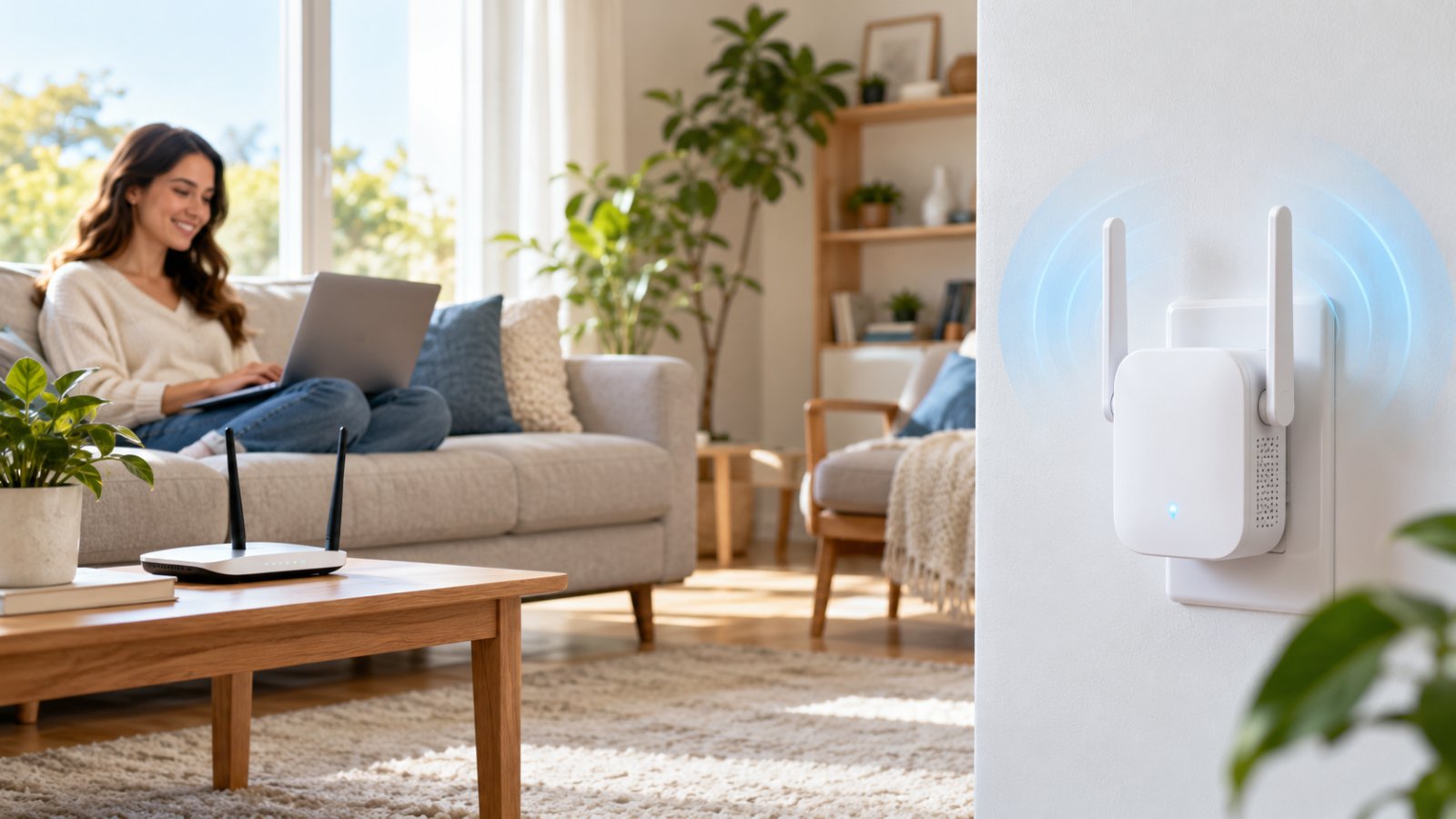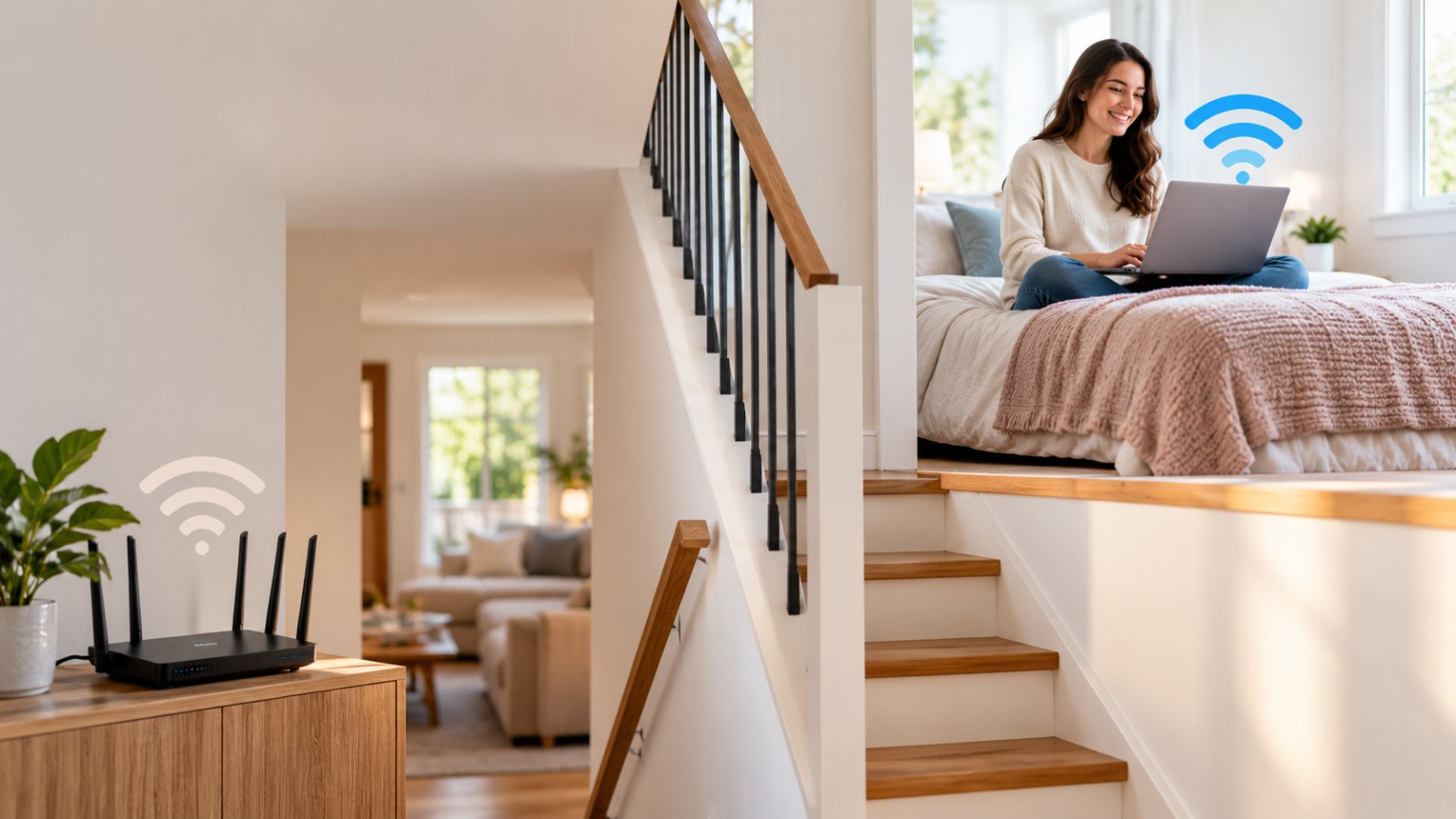
If you're trying to figure out how to fix slow WiFi upstairs, begin with three simple checks: your router's location, the wireless band your devices are using, and whether the connection works properly downstairs. If those checks don't solve the problem, a well-placed WiFi extender, mesh system, or wired access point can help bring a more reliable connection to the second floor.
The frustrating part is that your internet may work perfectly in the living room and barely function in the bedroom directly above it. Video calls freeze, websites take longer to load, and your phone switches to mobile data without warning.
This happens because WiFi signals lose strength as they travel through floors, walls, furniture, and other obstacles. Sometimes the solution is as simple as moving your router. Other times, the building itself makes additional networking equipment necessary.
Below are six practical fixes, starting with changes you can make using your existing equipment.
Why WiFi Signals Struggle to Reach Upstairs
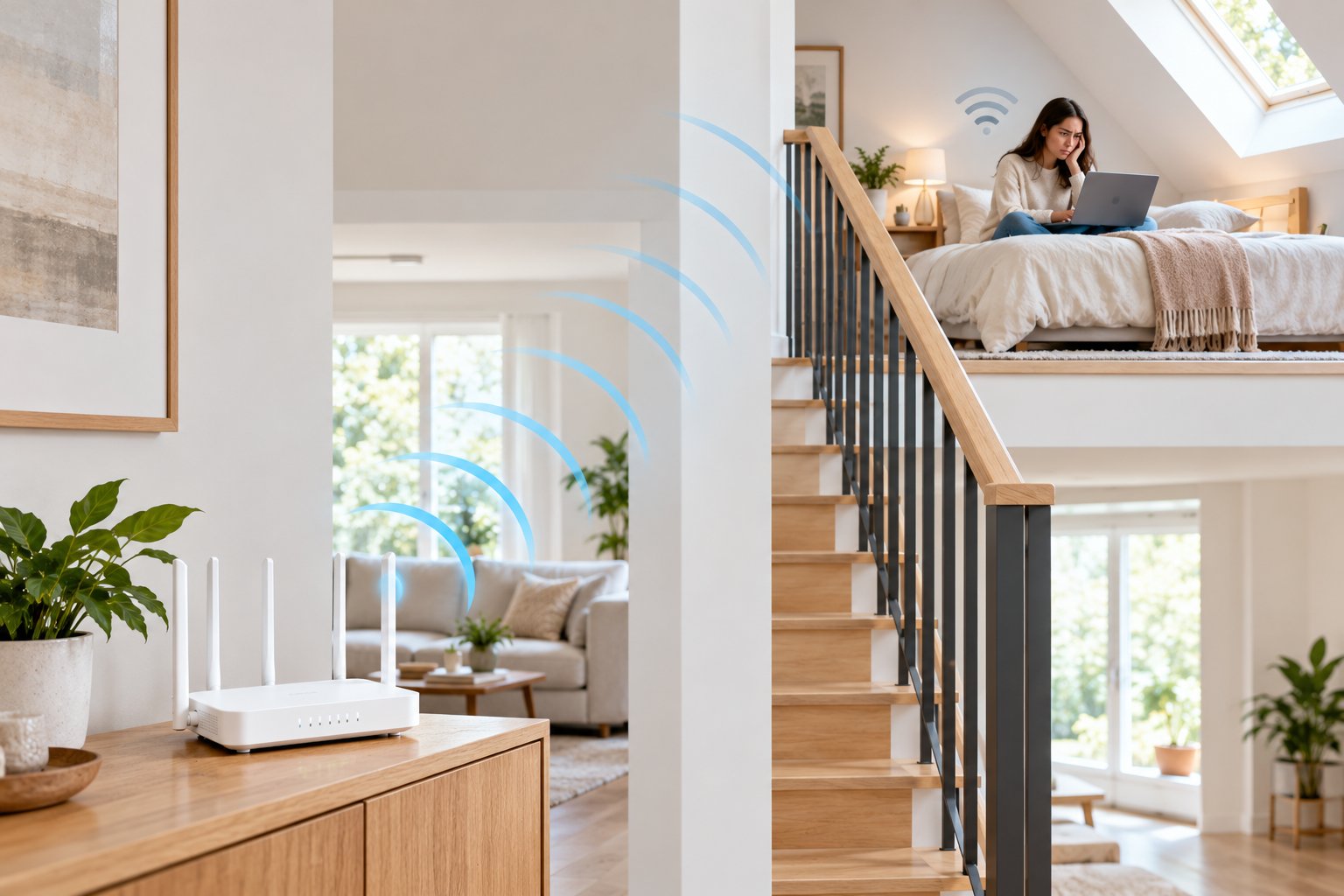
WiFi uses radio waves to carry information between your router and connected devices. These waves can travel through walls and floors, but they become weaker along the way.
Network engineers call this loss of signal strength signal attenuation.
Imagine your router sitting on a low cabinet in the downstairs living room. Your laptop connects easily while you're sitting nearby. Take that same laptop upstairs, and the signal must pass through the ceiling, floor structure, walls, and possibly furniture before it reaches you.
Every obstacle can affect the connection.
The result might be slower downloads, delayed video calls, or a device repeatedly losing WiFi.
You might assume that your internet plan is too slow. But if everything works normally downstairs, buying a faster internet package may not change anything upstairs.
The problem could be how the wireless signal travels through your home.
Floor Materials and Physical Obstacles
Building materials can make a noticeable difference to wireless coverage.
A wooden floor with relatively light construction may allow more WiFi signal through than reinforced concrete.
Likewise, a room reached through an open staircase may have better reception than a closer room separated by thick walls.
Common obstacles include:
-
Concrete floors: Dense material can weaken WiFi signals traveling between floors.
-
Reinforced concrete: Metal reinforcement can cause additional signal loss and reflections.
-
Brick walls: Several brick walls can significantly reduce reception.
-
Metal surfaces: Appliances, cabinets, ductwork, and metal fixtures can obstruct or reflect wireless signals.
-
Foil-backed insulation: Metallic insulation materials can interfere with wireless transmission.
-
Large furniture: Wardrobes, bookshelves, and heavy furniture can make an already weak connection less reliable.
Even where you place the router matters.
A router hidden behind a television may struggle to reach upstairs rooms that would otherwise have decent reception.
Here's a useful way to check whether obstacles are contributing to the problem.
Stand near the upstairs staircase with your phone connected to WiFi. Open a webpage or test a video.
Then move into the room where reception is poor.
If the connection becomes noticeably weaker after moving through a doorway or behind another wall, the building layout may be contributing to the problem.
That observation will also help you choose a better location for an extender later.
2.4GHz vs 5GHz Range Differences
Most modern dual-band routers broadcast wireless signals using two frequency bands: 2.4GHz and 5GHz.
They both connect devices to your home network, but they have different strengths.
The 2.4GHz band generally reaches farther and can handle some walls and floors better.
The 5GHz band provides greater wireless capacity over shorter distances, but its signal usually weakens more quickly through obstacles.
| Feature | 2.4GHz Band | 5GHz Band |
|---|---|---|
| Typical range | Longer | Shorter |
| Performance through walls | Generally better | Generally weaker |
| Wireless capacity | Lower | Higher |
| Interference | Often more crowded | Often less crowded |
| Common devices | Smart home equipment, printers, older devices | Laptops, phones, TVs |
| Upstairs use | Useful for distant rooms | Useful when the signal remains strong |
Suppose you have a home office upstairs.
Your laptop may connect to the 5GHz band because it offers greater speed potential. But if the signal must pass through a thick floor and multiple walls, the laptop might repeatedly disconnect.
Switching to 2.4GHz could provide a steadier connection, even if the maximum available speed is lower.
On the other hand, if the router is near an open staircase and your upstairs laptop receives a strong 5GHz signal, there may be no reason to switch.
The goal is a connection that stays reliable during normal use, not simply the highest advertised speed.
How to Fix Slow WiFi Upstairs: Check the Connection First
Before changing settings or buying new equipment, determine whether you have a WiFi coverage problem or a problem with the internet connection itself.
You can make a useful comparison with one laptop or smartphone.
Start downstairs, close to the router.
Open a few websites, stream a video, or run a speed test. Check whether the connection behaves normally.
Next, take the same device upstairs.
Repeat the same activity in the room where WiFi usually struggles.
Don't rely on one speed test alone. Internet performance can change temporarily because of downloads, other connected devices, and network traffic.
Look for a consistent pattern.
| What You Notice | Likely Area to Investigate | First Fix to Try |
|---|---|---|
| Strong WiFi downstairs, weak upstairs | Signal coverage | Router placement |
| 5GHz drops upstairs but 2.4GHz works | Band range | Switch to 2.4GHz |
| Slow internet on both floors | Router or internet connection | Check router and service |
| Better reception near the stairs | Physical obstructions | Consider extender placement |
| Several upstairs rooms struggle | Insufficient coverage | Mesh or additional access point |
| One computer is slow everywhere | Device-specific issue | Check that computer |
If you have an Ethernet cable, another useful check is to connect a laptop directly to the router.
A wired test helps separate wireless problems from issues affecting the entire internet connection.
For example, if the wired connection is also slow, investigate the router, modem, internet service, or other network activity before installing an extender.
Once you've confirmed that upstairs wireless coverage is the main issue, work through these six fixes.
Step 1: Optimize Your Router Placement and Antennas
A router can only distribute WiFi effectively from where it is installed.
Many households leave the router wherever the internet installer placed it. That might be beside the modem, behind a television, or near an outside wall.
Those positions are convenient for wiring but not always ideal for wireless coverage.
For a two-story home, the router's position can make a substantial difference.
Move the Router to an Open, Elevated Position
Look at your router's surroundings.
Is it sitting behind a large television? Inside a cabinet? Close to the floor?
If so, try moving it into a more open location.
A good starting position is:
-
Relatively central to the rooms needing coverage
-
On a shelf or suitable table rather than the floor
-
Away from large metal objects
-
Outside enclosed cabinets
-
Away from unnecessary electronic interference
-
Somewhere with adequate ventilation
For example, if your router sits on the floor beside a TV cabinet, moving it onto an open shelf may reduce some of the obstacles between it and upstairs devices.
You don't need to rearrange your entire home.
Try small, sensible changes first.
If the internet connection enters through a downstairs corner, you may be able to move the router using a suitable Ethernet cable.
Avoid stretching cables across walkways or putting the router somewhere it could overheat.
One practical tip: Don't move the router directly beside another electronic device simply because that location is higher. An open, ventilated position is usually a better starting point.
Adjust the Router Antenna Angle
If your router has external adjustable antennas, experiment with their orientation.
Router antennas don't necessarily send their strongest signal directly out of their tips.
Many common external antenna designs distribute much of their signal outward from their sides.
For general coverage on one floor, vertical antennas are often a reasonable starting point.
For multi-floor coverage, a combination of vertical and moderately angled antennas may be worth testing.
If your router has four adjustable antennas, for example, you could leave two upright and angle two slightly.
Then check reception in the upstairs room.
Don't assume that pointing every antenna directly toward the bedroom will provide the strongest signal.
Antenna design, router construction, and the surrounding environment all matter.
Some routers have internal antennas that cannot be repositioned. In that case, concentrate on the router's location instead.
Check Whether Router Placement Solves the Problem
Once you've adjusted the router:
-
Connect your phone or laptop to the main WiFi network.
-
Test the connection downstairs.
-
Move upstairs with the same device.
-
Open the websites or apps that previously struggled.
-
Check other affected rooms.
-
Compare the connection with your earlier results.
Try to keep other conditions similar.
For example, don't compare a speed test taken during a large family download with another test taken when the network is idle.
If upstairs WiFi becomes reliable, you may not need additional hardware.
If the connection is still inconsistent, move to the next step.
Step 2: Switch Upstairs Devices to the 2.4GHz Band
If your upstairs device keeps disconnecting from 5GHz, test the 2.4GHz band.
This is one of the easiest changes to try on a dual-band router.
The 2.4GHz band generally has better reach, making it useful when wireless signals need to travel through floors or several walls.
You may notice lower maximum download speeds, but the connection could become more dependable.
For email, browsing, online classes, and everyday work, stability often matters more than peak speed.
How to Check Which WiFi Band You're Using
Open WiFi settings on your phone or laptop.
Some routers give each wireless band a separate name.
For example:
-
HomeWiFi
-
HomeWiFi_5G
The first network may be configured for 2.4GHz, while the second uses 5GHz.
However, network names can be customized. Check your router settings if you're unsure.
Other routers combine both bands under one name.
This arrangement is commonly called Smart Connect or band steering.
The router attempts to choose an appropriate band for each device.
If the router combines the bands, you may need to review its wireless settings to test them separately.
Only change these settings if you're comfortable doing so, and keep a record of the original configuration.
When Switching to 2.4GHz Makes Sense
Try 2.4GHz if:
-
Your laptop disconnects in an upstairs bedroom.
-
A smart TV struggles to remain connected.
-
Your phone loses 5GHz reception behind several walls.
-
A wireless printer works downstairs but not upstairs.
-
Your device connects reliably near the staircase but poorly farther away.
After changing bands, test the connection during your usual activities.
Join a video meeting. Browse the web. Stream a video.
If those activities work reliably, the band change may be enough.
You don't need the fastest possible wireless connection for every device.
A printer, for example, rarely benefits from being connected to 5GHz if 2.4GHz provides a steadier signal.
Check for Wireless Interference
The 2.4GHz band has one disadvantage: it is often crowded.
Neighboring routers, Bluetooth equipment, and some household electronics use nearby frequencies.
That can affect performance even when your device shows a reasonably strong signal.
Most routers provide automatic WiFi channel selection.
For many homes, this is a sensible setting to keep enabled.
If you suspect interference, you can examine the wireless channel options in your router's settings.
For typical 2.4GHz networks using 20 MHz channels, channels 1, 6, and 11 are commonly used because they avoid overlapping one another.
However, changing channels without understanding the surrounding network conditions may make no difference.
Try the simpler fixes first.
If your connection becomes stable after switching bands, leave the advanced settings alone.
Step 3: Update Router Firmware to Clear Performance Glitches
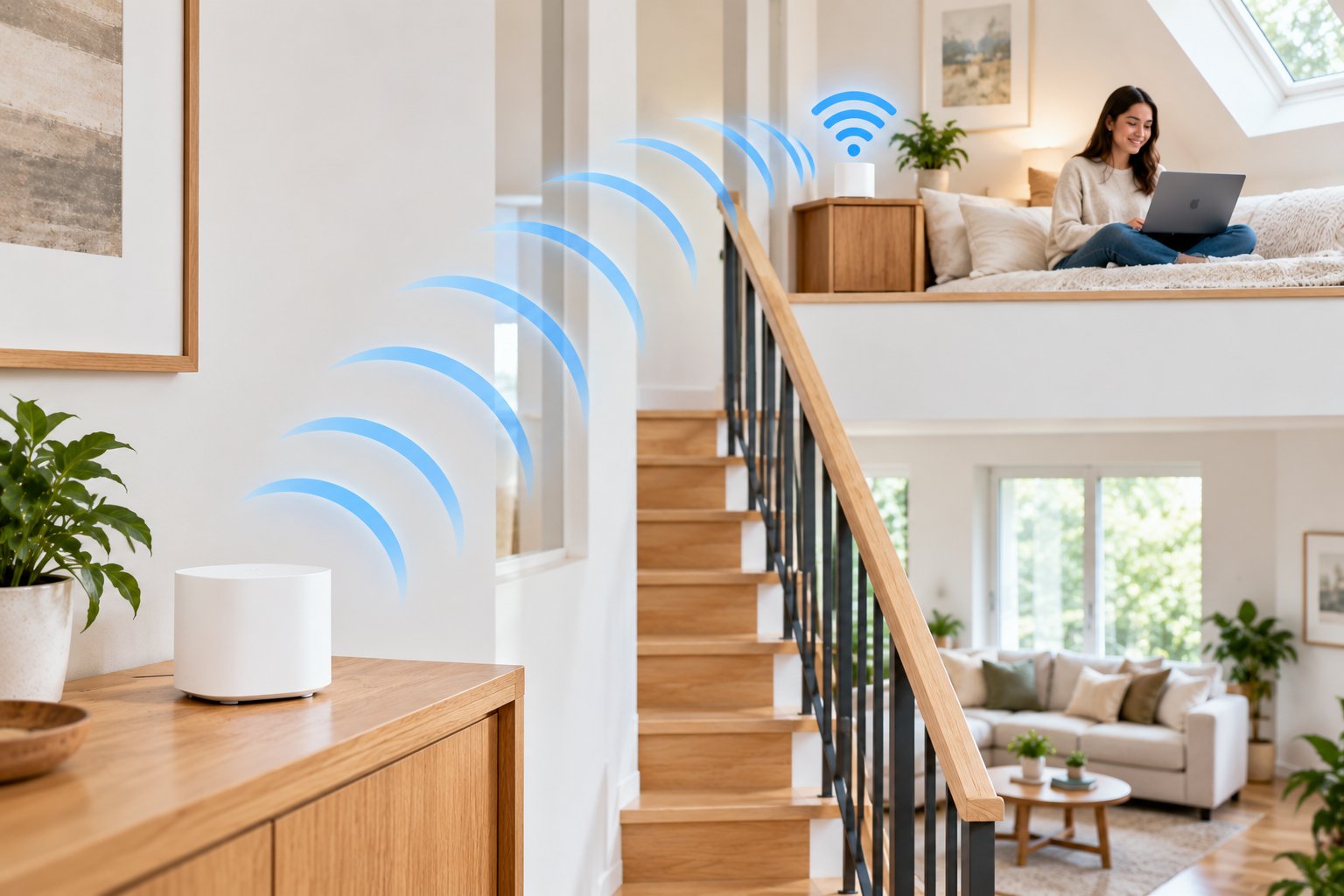
Router firmware is the software that controls your networking equipment.
It manages wireless connections, device communication, security settings, and other essential functions.
Like software on a laptop, router firmware can contain bugs.
Manufacturers sometimes release updates to fix connection problems, address security vulnerabilities, or improve compatibility with connected devices.
A firmware update won't make WiFi pass through concrete more easily.
But if your router has a software-related stability problem, updating it may help.
Signs That Router Firmware May Need Attention
Check whether an update is available if:
-
Your router frequently disconnects devices without an obvious reason.
-
Several devices experience similar problems.
-
The router restarts unexpectedly.
-
Devices struggle to reconnect after losing WiFi.
-
Your router hasn't been checked for updates in a long time.
-
The manufacturer has released a relevant stability or security update.
Don't assume firmware is responsible for every slow connection.
If only one laptop has problems while other devices work normally, check that laptop first.
Similarly, if the signal becomes weak only after moving upstairs, physical coverage is still a likely cause.
How to Update Your ROOXIS Router Firmware
For supported ROOXIS router models, the administration interface provides access to firmware information and update settings.
A typical update process involves:
-
Connect your computer to the ROOXIS router.
-
Open a browser and enter 192.168.10.1.
-
Sign in using the router's administrator credentials.
-
Find the system or firmware information section.
-
Check the installed firmware version.
-
Review official ROOXIS support information for an approved update.
-
Obtain the correct firmware file for your exact router model.
-
Open the firmware update section.
-
Select the approved file and begin the update.
-
Allow the router to finish installing and restarting.
-
Reopen the router settings and verify the firmware version.
The menu names may vary between models.
For detailed instructions, follow the official guide to update your router firmware.
Be careful when downloading firmware.
Two routers may look similar or share an AC1200 rating but use different internal components.
Never install firmware intended for a different device.
If you're unsure which firmware file applies to your router, check with ROOXIS support before proceeding.
Precautions Before Updating Firmware
A firmware update temporarily interrupts your internet connection.
Choose a time when nobody needs the network for an important meeting, exam, or work task.
Where possible, connect your computer to the router through Ethernet during the update.
Don't switch off the router, unplug its power cable, or press its reset button while firmware installation is in progress.
An interrupted update can prevent networking equipment from restarting normally.
After the router restarts, reconnect your devices and test the upstairs connection.
If wireless reception is still poor only on the second floor, an extender or another coverage solution may be more appropriate.
Step 4: Install a Dual-Band WiFi Extender Halfway Upstairs
A WiFi extender can help when your router works well downstairs but doesn't reach upstairs rooms reliably.
It connects to the existing wireless network and broadcasts coverage into another part of the house.
This is useful when replacing the router isn't necessary and you only need better reception in one or two areas.
The biggest mistake is installing the extender directly inside the worst dead zone.
An extender needs a good connection to the router before it can provide a useful connection to other devices.
If the extender barely receives WiFi itself, it won't solve the underlying problem.
Where to Place a WiFi Extender in a Two-Story Home
Start with an outlet somewhere between your router and the room with weak WiFi.
In many two-story homes, an outlet near the staircase or upper landing is worth testing.
The exact midpoint isn't always best.
A concrete floor, a thick wall, or metal fixtures may force you to position the extender closer to the router.
Good starting locations include:
-
Near an open staircase
-
On an upstairs landing
-
In a hallway with fewer walls between the extender and router
-
In a room that still receives reliable WiFi
-
Somewhere between the main router and the area needing better coverage
Suppose your router sits in a downstairs living room and your office is upstairs at the back of the house.
An extender inside the office might receive a very weak signal.
Placing it near the staircase could provide a stronger connection to the router while bringing WiFi closer to the office.
The goal is to balance both sides of the connection.
How the ROOXIS AC1200 Extender Can Help
The ROOXIS AC1200 is a dual-band WiFi extender designed to extend an existing home wireless network.
Its features include:
-
Support for 2.4GHz and 5GHz WiFi
-
AC1200 wireless performance class
-
WPS pairing
-
Browser-based setup
-
Two external dual-band antennas
-
Repeater Mode
-
Access Point Mode
-
A 10/100 Mbps Ethernet port
-
A connection status indicator
The AC1200 rating refers to theoretical wireless link rates of up to 300 Mbps on 2.4GHz and 867 Mbps on 5GHz.
These aren't guaranteed internet speeds.
Actual performance depends on your router, home layout, interference, and available internet connection.
For example, if your upstairs laptop struggles because the router's signal is weak, the extender may help provide a more usable connection.
But if your internet service is experiencing an outage, the extender cannot correct it.
The ROOXIS extender also supports Access Point Mode.
If you have an active Ethernet connection upstairs, that mode allows the extender to create WiFi using the wired network rather than repeating the router's wireless signal.
The Ethernet port is rated at 100 Mbps, which should be considered when planning the connection.
How to Set Up the ROOXIS AC1200 Extender
You can configure the ROOXIS AC1200 using WPS or a web browser.
Option 1: WPS Setup
WPS stands for Wi-Fi Protected Setup. It allows compatible devices to pair using their buttons.
Follow these steps:
-
Plug the extender into a wall outlet near your router.
-
Wait for it to finish starting.
-
Press the WPS button on your router.
-
Within two minutes, press the WPS button on the extender.
-
Allow the devices to complete pairing.
-
Check the extender's connection indicator.
-
Connect your phone or laptop to the extended WiFi network.
ROOXIS documents approximately two-second WPS button presses, although your router may use a different procedure.
If WPS doesn't work, use browser setup.
Option 2: Browser Setup
Browser configuration lets you choose the router's wireless network manually.
-
Connect a phone or laptop to the extender's default WiFi network.
-
Open a browser.
-
Enter 192.168.8.1 or home.to into the address bar.
-
Select Repeater Mode.
-
Choose your existing WiFi network.
-
Enter the correct wireless password.
-
Save the configuration.
-
Allow the extender to restart.
-
Connect to the extended WiFi network.
During setup, your phone may report that the extender's network has no internet access.
That can be normal until the extender finishes connecting to your router.
Stay connected to the setup network while completing configuration.
Once the extender works near the router, move it to the desired outlet.
Let it reconnect and check the signal indicator before testing upstairs.
Use the Signal Indicator to Find a Better Position
The ROOXIS AC1200 includes a status indicator that helps with placement.
| LED Indicator | Meaning | What to Try |
|---|---|---|
| Solid blue | Good router connection | Test upstairs performance |
| Solid yellow | Fair signal from the router | Move slightly closer to the router |
| Solid red | Connection failed or unavailable | Check configuration and distance |
| Blinking | Startup or pairing activity | Allow the process to finish |
| No light | No power indication | Check the outlet and power |
The indicator is helpful, but it isn't a complete performance measurement.
A blue light means the extender has established a good connection to the router.
It doesn't guarantee identical WiFi speeds in every upstairs room.
After finding a location with a good connection, use your laptop or phone in the problem area.
Join a video call or stream a video.
If the connection still struggles, test another nearby outlet.
You may find that an extender positioned closer to the router gives you better overall performance than one installed nearer the bedroom.
When an Extender May Not Be Enough
A wireless extender is not the ideal solution for every house.
For example, if reinforced concrete separates the floors, you might struggle to find any upstairs outlet where the router's WiFi remains strong.
An extender can't reliably repeat a connection it doesn't receive.
Wireless repeating also uses capacity to communicate with both the router and connected devices.
That may be perfectly acceptable for everyday browsing or lighter network activity.
However, a household with several upstairs computers, televisions, and other demanding devices may need a different network arrangement.
In that situation, consider a compatible mesh network or a wired access point.
Step 5: When to Consider a Multi-Node Mesh System
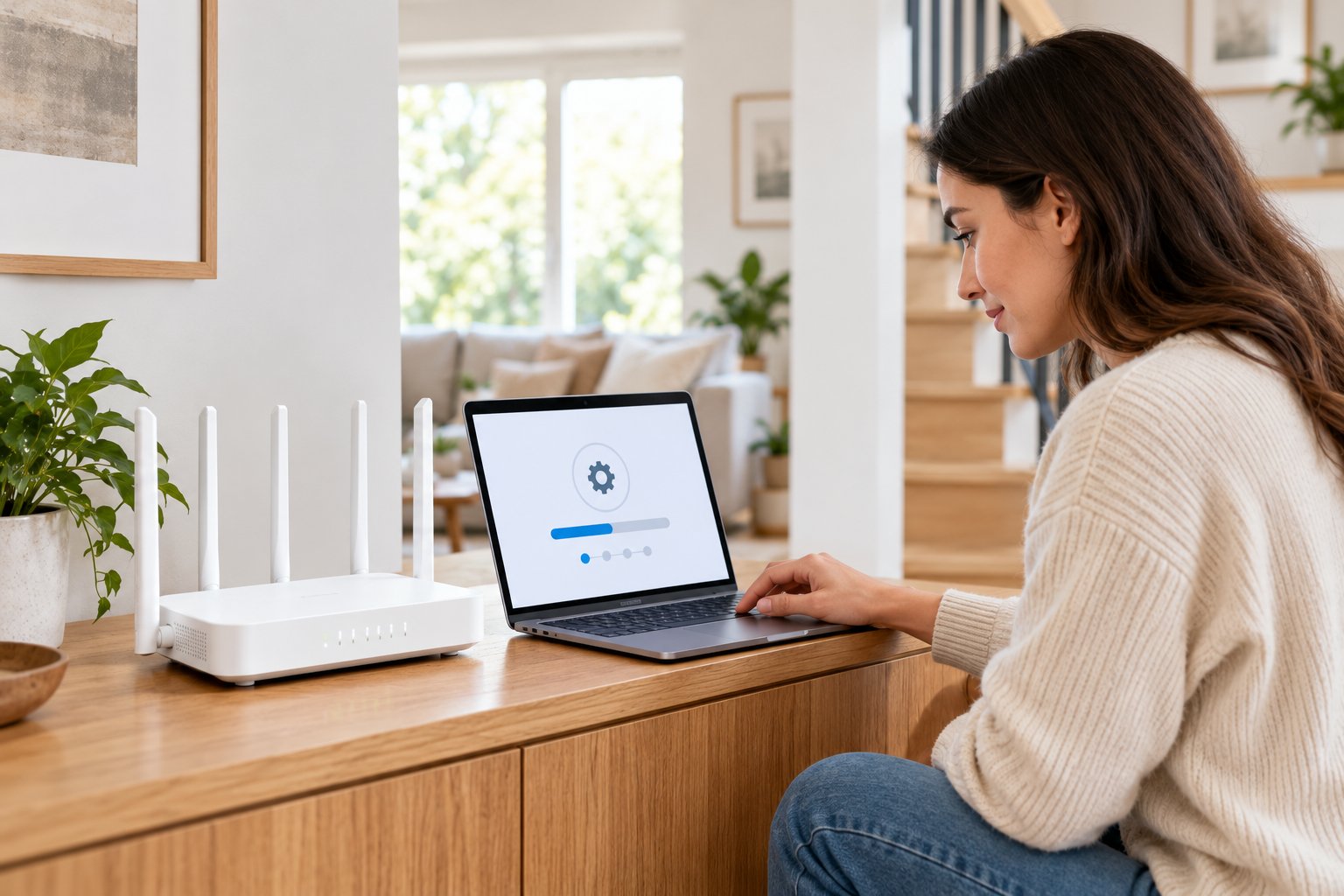
A mesh network uses multiple compatible wireless nodes to provide coverage across a home.
One node connects to the main internet connection. Additional nodes are installed around the property.
The devices work together as a coordinated wireless network.
Mesh systems can be useful when one router can't reliably cover several floors or distant rooms.
They are particularly worth considering when weak coverage affects more than one area.
How Mesh Networking Differs From a Basic Extender
A conventional WiFi extender repeats an existing wireless connection.
Depending on its configuration, it may broadcast an extended network with a different name.
A mesh system is designed to coordinate multiple access points within a common network.
This can make it easier for compatible devices to move between coverage areas.
For example, someone might begin a video call downstairs and continue walking upstairs.
A properly configured mesh network may help their device move between nodes more smoothly.
However, the phone or laptop still plays a role in deciding when to switch.
Mesh networking doesn't guarantee that every connection will remain uninterrupted.
Node placement, network traffic, and the connection between nodes all affect performance.
Which WiFi Router Setup Works Best for a Multi-Floor Home?
The right network arrangement depends on your home's layout and the number of areas requiring coverage.
A smaller two-story home might work well with one centrally positioned dual-band router.
A larger home with one weak bedroom may only need an extender.
A property with several distant rooms could benefit from multiple compatible mesh nodes.
| Network Setup | Suitable Situation | Main Limitation |
|---|---|---|
| Single dual-band router | Compact or open-plan homes | Coverage depends heavily on placement |
| Router with WiFi extender | One or two weak upstairs rooms | Extender needs a good router connection |
| Multi-node mesh network | Several weak areas across floors | Node placement and compatibility matter |
| Router with wired access point | Upstairs Ethernet is available | Requires suitable wiring |
| Mesh with wired backhaul | Larger homes with network cabling | Depends on wired network access |
Backhaul is the connection used to carry data between networking nodes and the main router.
Some mesh systems use WiFi for this connection.
Others support Ethernet.
A wired backhaul can help when thick floors make wireless communication between nodes difficult.
However, the equipment must support the connection method you plan to use.
Where to Place Mesh Nodes Upstairs
Mesh nodes need good placement, just like wireless extenders.
Don't automatically place a node at the farthest point of the house.
If that location has almost no signal from the other nodes, the mesh connection may struggle.
Begin with an open location near the staircase or upstairs hallway.
Useful placement principles include:
-
Avoid enclosed cabinets.
-
Keep nodes away from large metal objects.
-
Place them where they can communicate reliably with another node.
-
Avoid putting several nodes unnecessarily close together.
-
Follow the manufacturer's placement guidance.
-
Test wireless coverage after each change.
For example, in a three-story house, placing nodes along a suitable vertical route through the building may provide better connections than installing each one in a distant corner.
Actual placement depends on the floor structure and the equipment being used.
Check Mesh Compatibility Before Buying
Not all WiFi extenders and routers can join the same mesh system.
The ROOXIS AX3000 WiFi 6 router lists EasyMesh support, but that doesn't mean every ROOXIS extender automatically works as an EasyMesh node.
Check the specifications for each device before purchasing.
If you already own a router without compatible mesh functionality, you may need additional or replacement equipment to build the system you want.
There's also no reason to pay for a multi-node mesh setup if a single extender fixes your upstairs coverage problem.
Choose based on the number of weak areas and how difficult they are to reach.
Step 6: Use Ethernet or a Wired Access Point for Persistent Upstairs Dead Zones
If you've tried better router placement, both wireless bands, and an extender without success, the floor structure may be making wireless communication difficult.
This is common in some homes with reinforced concrete floors or thick masonry walls.
A wired connection can help because it doesn't rely on WiFi traveling through those obstacles.
Instead, an Ethernet cable carries the network connection to the upstairs room.
From there, you can connect a computer directly or use an access point to provide local WiFi.
Connect Important Devices Directly With Ethernet
Ethernet is often worth considering for equipment that remains in one location.
Examples include:
-
Desktop computers
-
Home office workstations
-
Gaming consoles
-
Smart TVs
-
Network storage devices
-
Equipment used for large local file transfers
Suppose your upstairs office is used for regular video meetings.
If an Ethernet connection is available, connecting the computer directly to the router may reduce interruptions caused by weak WiFi.
This doesn't make your internet service faster than the plan you've purchased.
It removes the wireless portion of the connection between your computer and router.
Some houses already have Ethernet wall sockets.
If yours does, check whether the socket is connected to the main router or network switch.
If the home doesn't have network cabling, installing Ethernet may require more work.
Use an appropriate cable route, avoid trip hazards, and follow applicable building and electrical requirements.
Use a Wired Access Point for Upstairs WiFi
A wired access point provides wireless coverage using an Ethernet connection to the home network.
Unlike a wireless repeater, it doesn't need to receive WiFi from the downstairs router.
For example, you might have an Ethernet wall socket in the upstairs hallway.
Connecting a compatible access point there can provide local WiFi to nearby bedrooms.
That arrangement avoids having to send the backhaul connection through the floor wirelessly.
The ROOXIS AC1200 extender supports Access Point Mode, although its Ethernet port has a maximum wired link rate of 100 Mbps.
That is an important distinction if you have a faster internet plan or regularly transfer large files over the local network.
For higher-capacity wired connections, equipment with Gigabit Ethernet may be more appropriate.
Is Wired Networking Worth the Extra Work?
It depends on how much the unreliable connection affects your household.
If moving the router or adding an extender fixes an upstairs bedroom, running Ethernet may not be necessary.
But if you work from upstairs every day and regularly experience interruptions, a wired connection could be worthwhile.
Use this comparison when deciding:
-
Choose a WiFi extender when you have one or two weak rooms and a suitable location with good router reception.
-
Choose a mesh system when several parts of the house need coordinated wireless coverage.
-
Choose a wired access point when floors or walls significantly obstruct wireless signals.
-
Choose direct Ethernet when an important stationary device needs a dependable connection.
The most expensive option is not automatically the best one.
A simpler setup that addresses the actual problem is often easier to manage.
How to Check Whether Your Upstairs WiFi Has Improved
After making changes, repeat the checks you performed before troubleshooting.
Use the same phone or laptop, and test from the same upstairs locations.
Try normal activities rather than relying entirely on a speed test.
A practical checklist includes:
-
Open several websites from the bedroom where WiFi was slow.
-
Join a video meeting from your upstairs workspace.
-
Stream a video and check whether buffering continues.
-
Test a device in the room farthest from the router.
-
Check whether WiFi stays connected when moving between rooms.
-
Verify that your device is using the intended wireless network.
-
Repeat the test when other household devices are active.
If you're comparing speed test results, run them several times under similar conditions.
For example, don't judge performance using one test during a large download and another when the network is idle.
The results should help you understand whether the changes made a useful difference.
Also remember that signal strength and internet speed are not identical.
A strong WiFi signal to an extender cannot compensate for a weak connection between that extender and the router.
Likewise, no router or extender can resolve an internet provider outage.
The best result is a connection that reliably supports the work, streaming, and everyday browsing you actually do upstairs.
Frequently Asked Questions About Multi-Floor WiFi
Why is WiFi always slower upstairs than downstairs?
WiFi often becomes slower upstairs because the signal has to pass through floors, ceilings, walls, and other obstacles. These materials weaken wireless signals, particularly on the 5GHz band. Better router placement, using 2.4GHz, or installing a properly positioned extender may improve the connection.
Does putting a router upstairs or downstairs work better?
The best location depends on your home's layout and where most devices are used. A central, elevated downstairs position is often a useful starting point for a two-story home, but placing the router upstairs may work better if most of your devices are on that floor. Test coverage in the important rooms before settling on a location.
Can a WiFi extender boost signal to a second floor?
Yes, a WiFi extender can improve second-floor coverage if it receives a dependable signal from the main router. Placing it near a staircase or upstairs landing is often more effective than installing it directly inside a dead zone. Results depend on the building materials, wireless interference, and the quality of the connection back to the router.
Should I use 2.4GHz or 5GHz for upstairs rooms?
The 2.4GHz band is usually worth trying when WiFi needs to pass through walls or floors because it generally provides better range. The 5GHz band can offer greater capacity when the upstairs device still receives a strong signal. Test both bands and use the one that provides the most reliable performance.
Slow WiFi upstairs doesn't automatically mean you need a new router or a faster internet plan. Start with the basics: check your router's location, adjust its antennas where possible, test the 2.4GHz band, and install appropriate firmware updates.
If those changes aren't enough, a WiFi extender may help bring coverage closer to the rooms that need it. For homes with several difficult-to-reach areas, a compatible mesh network or wired access point may be a better long-term solution.
ROOXIS offers dual-band routers and WiFi extenders for different home networking needs. Its AC1200 extender is an option when your existing router works well but struggles to reach the second floor. Choose the solution that fits your home's layout, and check the connection where you actually use it.