A ROOXIS WiFi extender can help improve wireless coverage in upstairs bedrooms, home offices, and other rooms where your router's signal becomes weak. If your WiFi works well near the router but drops out farther away, an extender is worth considering. If the connection is slow throughout the house, check the router and internet service before buying additional equipment.
ROOXIS offers dual-band WiFi extenders and routers for different home layouts. Its AC1200 extender supports 2.4 GHz and 5 GHz connections, WPS pairing, and an Ethernet port for compatible wired devices.
Choosing between a router and an extender comes down to where the connection fails, what equipment you already own, and whether you can use Ethernet wiring. This guide covers those decisions, along with practical setup, placement, firmware maintenance, and troubleshooting advice.
ROOXIS WiFi Range Extenders for Whole-Home Coverage
A WiFi extender is useful when your router provides a stable connection in most of the house but struggles to reach certain areas.
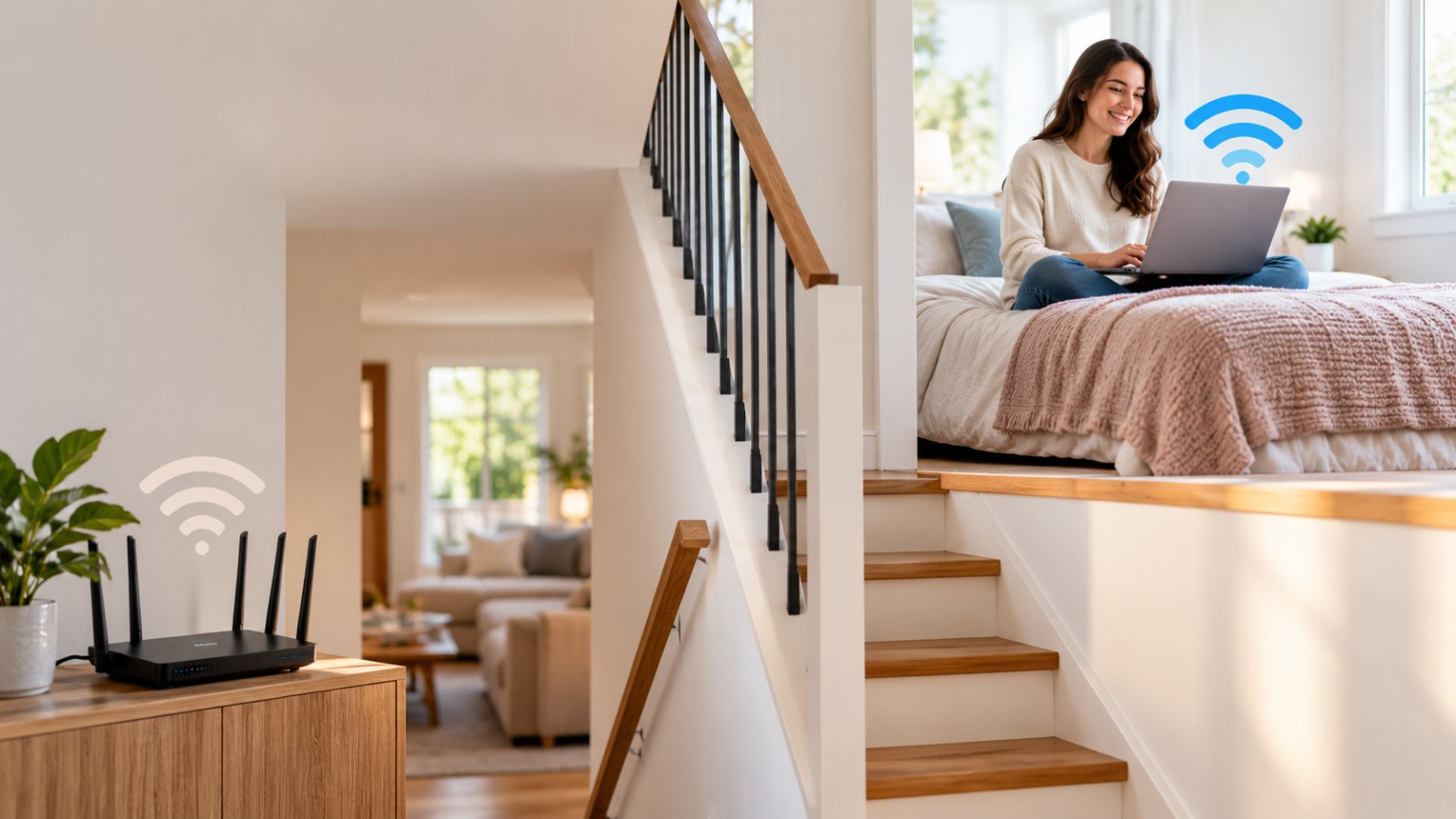
Consider a home where the router sits beside the television downstairs. Phones and laptops connect without problems in the living room. Upstairs, however, a video call starts freezing whenever someone closes the bedroom door.
That pattern suggests a coverage problem. The router is providing internet access, but its wireless signal is weakening as it passes through walls and floors.
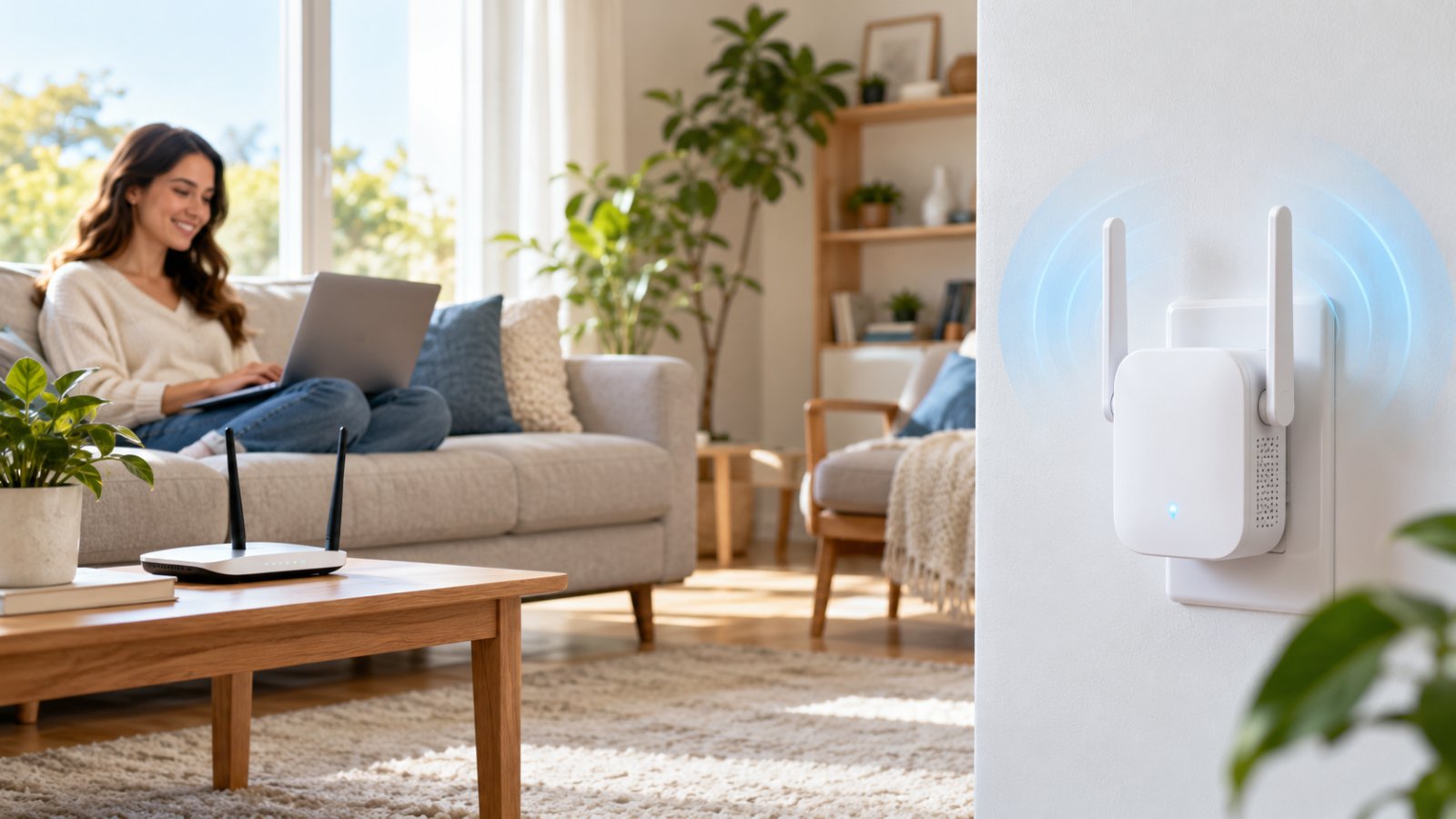
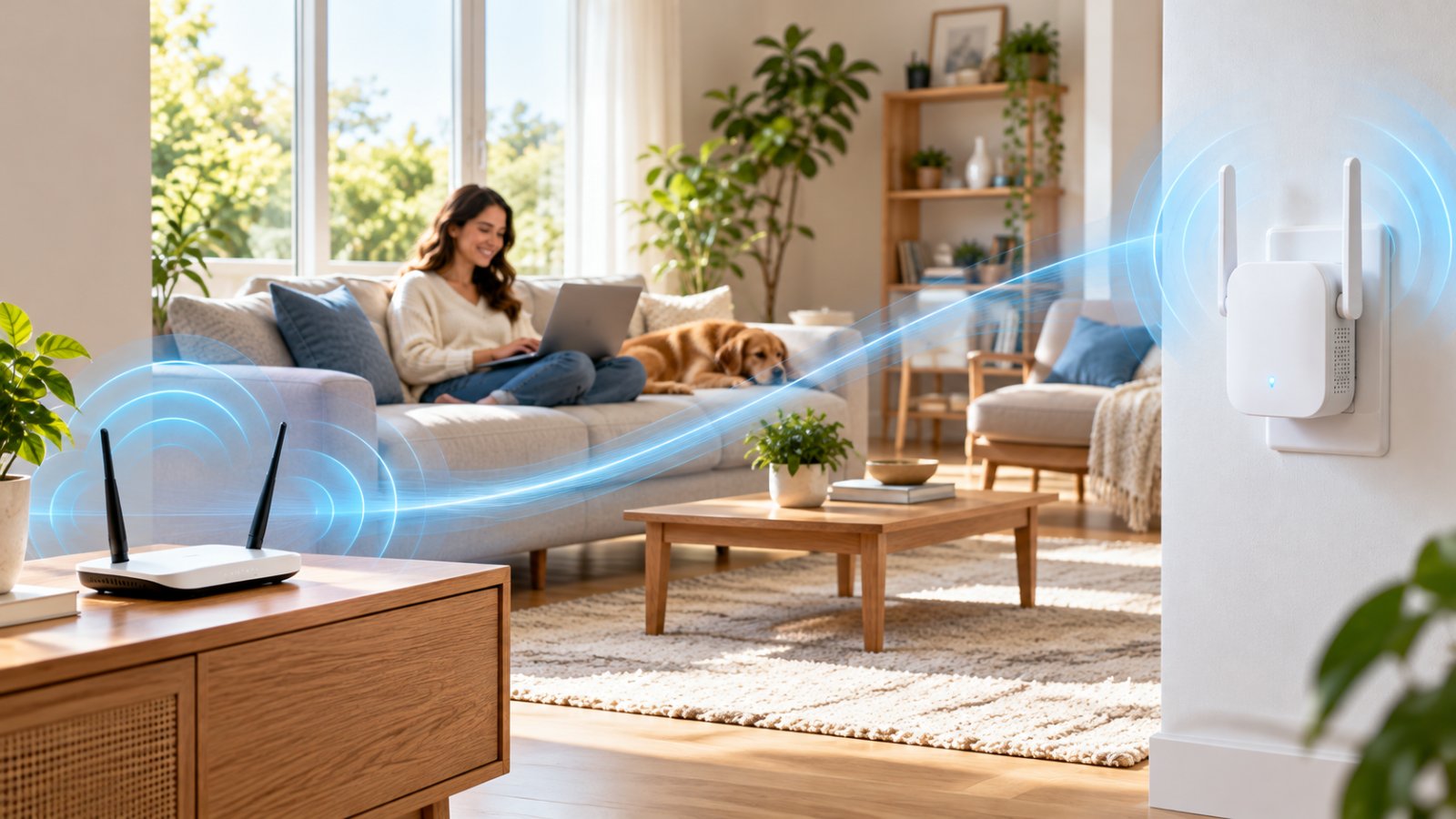
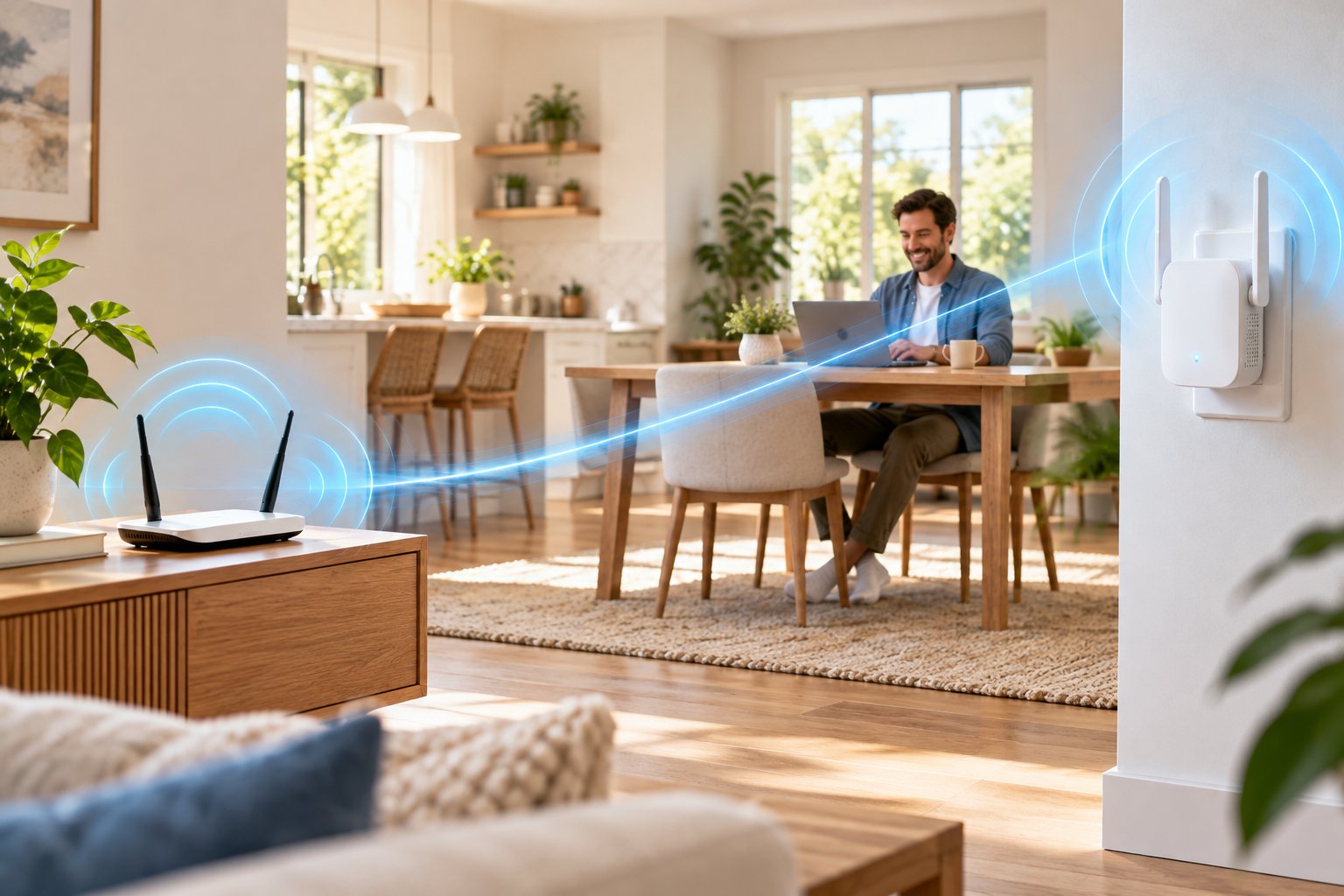
A ROOXIS WiFi extender can help by receiving the router's signal and rebroadcasting it closer to the problem area.
The important part is placement.
An extender must receive a dependable signal before it can provide a dependable connection to other devices.
Plugging one into a room where the existing WiFi barely works will rarely produce a good result. You need to find an outlet with a reasonable connection to the router that is also close enough to improve reception in the problem area.
A WiFi extender also does not increase the speed of your internet plan. If your service is experiencing an outage or the main router cannot maintain a stable connection, the extender will repeat the same underlying problem.
When Does a WiFi Extender Make Sense?
An extender is generally worth considering when the connection changes noticeably as you move around the house.
For example, you might experience:
-
Weak upstairs WiFi: Your laptop works downstairs but struggles in an upstairs bedroom.
-
Unreliable home office connections: Video meetings freeze when you work at a desk far from the router.
-
Poor reception in a spare room: A smart TV connects but frequently buffers during streaming.
-
Limited garage coverage: A wireless device near the garage loses its connection even though WiFi works indoors.
-
Disconnected smart home equipment: A compatible camera, printer, or smart plug loses WiFi in a distant part of the property.
-
Inconsistent coverage in a home extension: Additional walls reduce reception in a newly converted room.
These problems do not necessarily require a new router.
If your current router provides good performance near its location, extending that existing network may be a more practical first step.
Before purchasing an extender, perform a simple check.
Connect a laptop or phone directly to your router's WiFi. Test the connection in the same room as the router, then move to the problem area.
Use the same device for both checks.
If the connection is consistently good near the router but poor farther away, distance or interference may be responsible.
If performance is poor in both locations, investigate the main network first.
An extender is designed to address wireless coverage, not every type of internet problem.
How an Extender Works With Your Existing Router
Your router creates the wireless network that devices use to access your home network and internet connection.
A WiFi extender connects to that wireless network and makes it available farther away.
In a typical installation:
-
Your internet connection reaches the main router.
-
The router broadcasts its wireless network.
-
The ROOXIS extender connects to that network.
-
The extender broadcasts an extended WiFi connection.
-
Devices in weaker coverage areas connect through the extender.
This process is known as wireless repeating.
It is useful because you do not need to install an Ethernet cable between the router and extender.
However, wireless repeating has limitations.
The extender must receive data from the router and transmit it to connected devices. That process uses available wireless capacity.
A strong signal between your laptop and the extender does not guarantee a strong connection between the extender and router.
For instance, your phone may show full WiFi bars while sitting next to the extender. But if the extender is too far from the router, websites may still load slowly.
The solution is often to move the extender closer to the main router.
In practice, a slightly more distant extender with a strong connection to the router can work better than an extender placed directly beside your laptop with a poor connection back to the router.
AC1200 Dual-Band Extender Features and Setup
The ROOXIS AC1200 WiFi extender supports two wireless frequency bands: 2.4 GHz and 5 GHz.
The device is designed to work with compatible routers and offers WPS pairing, browser configuration, and an Ethernet connection.
Here is a breakdown of its main specifications.
| Feature | ROOXIS AC1200 Specification | Practical Benefit |
|---|---|---|
| WiFi class | AC1200 | Dual-band wireless connectivity |
| 2.4 GHz band | Up to 300 Mbps theoretical wireless link rate | Useful for longer distances and compatible smart devices |
| 5 GHz band | Up to 867 Mbps theoretical wireless link rate | Higher wireless capacity at shorter distances |
| Antennas | Two external dual-band antennas | Supports wireless signal reception and transmission |
| Ethernet port | 10/100 Mbps | Connects compatible wired devices |
| Operating modes | Repeater and Access Point | Supports wireless or wired network extension |
| Setup methods | WPS and web browser | Provides alternative configuration methods |
| Status indicator | Blue, yellow, and red states | Helps identify connection quality |
What AC1200 Actually Means
AC1200 is a wireless performance class.
The advertised link rates are up to 300 Mbps on 2.4 GHz and 867 Mbps on 5 GHz.
These are theoretical wireless connection rates, not guaranteed internet download speeds.
One laptop cannot combine both figures to receive the total advertised rating.
Actual performance depends on the router, wireless interference, walls, connected devices, and your internet service.
When to Use 2.4 GHz
The 2.4 GHz band generally reaches farther than 5 GHz and can perform better through some obstacles.
It is often suitable for:
-
Smart plugs and household sensors
-
Wireless printers
-
Older laptops and tablets
-
Compatible security cameras
-
Devices located farther from the extender
The disadvantage is interference.
Many neighboring wireless networks and household electronics use 2.4 GHz, which can make the band crowded.
When to Use 5 GHz
The 5 GHz band generally offers greater wireless capacity at shorter distances.
It is often better suited to:
-
Laptops used for video meetings
-
Smart TVs
-
Modern smartphones
-
Large downloads
-
Computers used close to the extender
For example, a laptop in the room next to the extender may perform well on 5 GHz.
A printer separated from the extender by several walls may maintain a more stable connection on 2.4 GHz.
Do not assume 5 GHz is always the better option simply because its advertised rate is higher.
Choose the band that delivers the most stable connection where the device is normally used.
Ethernet Connectivity and Access Point Mode
The ROOXIS AC1200 extender includes a 10/100 Mbps Ethernet port.
This can be useful for devices with an Ethernet connection but unreliable built-in WiFi.
Suppose a smart TV frequently disconnects from wireless networking. You could connect the television to the extender using an Ethernet cable.
In Repeater Mode, the extender still connects wirelessly to the main router, while the TV uses a wired connection to the extender.
This removes one wireless connection from the path.
However, the Ethernet port has a maximum wired link rate of 100 Mbps. It cannot provide a faster wired connection than the port supports.
Access Point Mode
The same extender can also operate as a wireless access point.
Instead of receiving its network connection through WiFi, it connects to your home network using Ethernet.
This arrangement makes sense when you already have an Ethernet connection in the room that needs coverage.
For example, a converted home office might have a network wall socket connected to the main router.
You can use that connection to create local WiFi instead of repeating a signal through several walls.
The result may be more consistent because the link back to the router does not depend on wireless reception.
Keep the Ethernet port's 100 Mbps limitation in mind when deciding whether this arrangement meets your needs.
Basic ROOXIS Extender Setup
The ROOXIS AC1200 supports two main setup methods.
Method 1: WPS Connection
WPS stands for Wi-Fi Protected Setup. It allows compatible wireless devices to connect using pairing buttons.
To set up the extender:
-
Plug the ROOXIS extender into an outlet near your main router.
-
Allow it to complete startup.
-
Press your router's WPS button according to its instructions.
-
Within two minutes, press the WPS button on the extender.
-
Wait for pairing to complete.
-
Check the extender's connection indicator.
-
Connect your phone or computer to the extended wireless network.
ROOXIS's setup guidance describes holding the WPS button for approximately two seconds, although the router's procedure may differ.
If pairing fails, check whether WPS is enabled on the router.
You can also use browser configuration instead.
Method 2: Browser Configuration
Browser setup is useful when WPS is unavailable or you want to select the network manually.
-
Plug the extender into an outlet near the router.
-
Connect your phone or laptop to the extender's default setup network.
-
Open a browser.
-
Enter 192.168.8.1 or home.to into the address bar.
-
Select Repeater Mode.
-
Choose your home WiFi network.
-
Enter the current router WiFi password.
-
Save the settings and allow the extender to restart.
-
Connect to the newly created extended network.
The documented default naming pattern adds suffixes such as _EX and _5G_EX to your original network name.
Your phone may briefly report that the extender's setup network has no internet connection. This can be normal before configuration is complete.
Stay connected to that setup network until you finish.
Once the extender is working near the router, move it to the intended location and test again.
For product details and supported features, visit the ROOXIS AC1200 WiFi extender page.
Choosing the Right ROOXIS Device for Large Houses
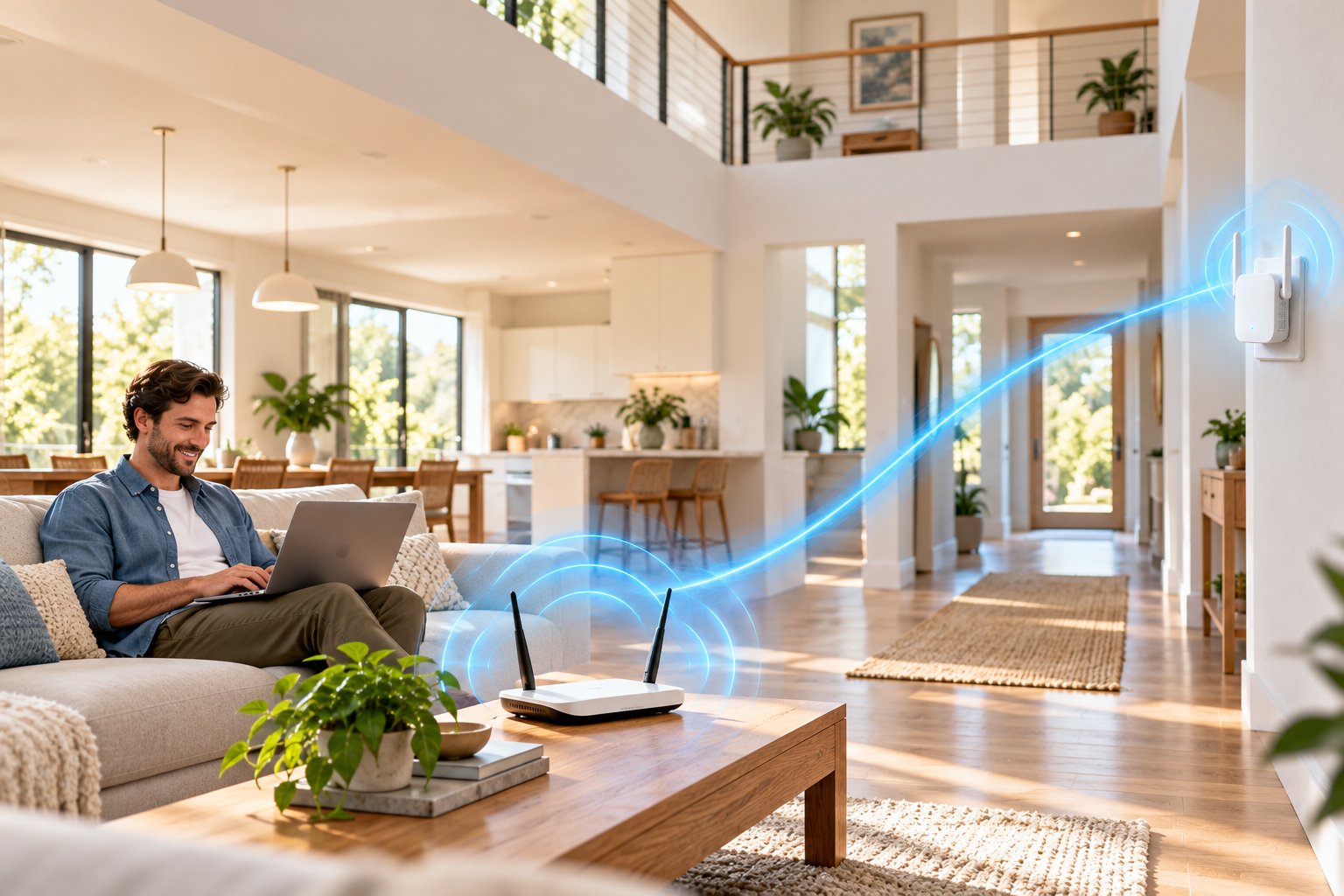
Large homes introduce problems that are less noticeable in smaller spaces.
A router may need to reach multiple floors, distant bedrooms, a home office, and smart home devices spread across several rooms.
The challenge is not simply the distance between the router and the farthest device.
Walls, reinforced floors, metal fixtures, and neighboring wireless networks affect how well WiFi travels.
Two houses with similar floor areas can have very different wireless coverage.
That is why buying equipment based only on an advertised coverage figure is unreliable.
Start by identifying where the connection fails.
Identify Whether You Have a Router Problem or a Coverage Problem
Before choosing between a ROOXIS router and an extender, test your existing network.
You can do this without specialist equipment.
First, test near your router.
Connect a laptop or phone directly to the main WiFi network.
Open several familiar websites, stream a video, or use a reliable speed test.
Next, test in the problem room.
Repeat the same activity using the same device.
If the connection works normally beside the router but becomes unreliable in a distant room, you may need better coverage.
If performance is poor even beside the router, investigate the router or internet service.
Possible causes include:
-
An unstable internet connection
-
An older router struggling with household demand
-
Poor router placement
-
Wireless interference
-
Outdated firmware
-
A damaged or loose Ethernet cable
-
Heavy network activity from other devices
A household may experience several of these problems at once.
For example, the router might be positioned inside a cabinet while a large download is running on another computer.
Adding an extender would not resolve either issue.
Correct the main network problem before investing in more equipment.
Comparing ROOXIS Routers and Extenders
ROOXIS offers devices suited to different networking situations.
The AC1200 extender is designed to improve existing WiFi coverage.
The AX1800 WiFi 6 extender offers a newer wireless standard and a Gigabit Ethernet port.
ROOXIS routers, including its AC1200 and AX3000 models, can serve as the main wireless network.
| ROOXIS Device | Main Purpose | Key Capabilities | Best Fit |
|---|---|---|---|
| ROOXIS AC1200 WiFi Extender | Extend an existing wireless network | Dual-band AC1200, WPS, 10/100 Mbps Ethernet | Improving weak coverage in selected rooms |
| ROOXIS AX1800 WiFi 6 Extender | Extend an existing network with WiFi 6 capability | Dual-band AX1800, WPS, Gigabit Ethernet | Homes wanting newer wireless capabilities |
| ROOXIS AC1200 Dual-Band Router | Create and manage the main WiFi network | AC1200 WiFi, dual-band operation, Gigabit Ethernet | Basic router replacement or home network setup |
| ROOXIS AX3000 WiFi 6 Router | Create a newer main WiFi network | WiFi 6, Gigabit Ethernet, EasyMesh support | Busy homes and compatible mesh expansion |
These specifications describe supported features, not guaranteed performance throughout a property.
Your existing equipment and home layout still affect the results.
When to Choose the ROOXIS AC1200 Extender
The AC1200 extender is a sensible option when the existing router is working properly.
You may not need to replace equipment that already provides a reliable connection in most rooms.
Consider a home with a downstairs router and one upstairs office that receives weak WiFi.
An extender installed near the staircase may improve access to that office without requiring a new router.
The AC1200 model supports:
-
Dual-band wireless connections
-
WPS setup
-
Browser configuration
-
Repeater Mode
-
Access Point Mode
-
An Ethernet connection for compatible devices
It can be useful for browsing, schoolwork, video calls, and general household connectivity, provided the signal between the extender and router is strong enough.
The main consideration is the network path.
If your router's signal cannot reliably reach a suitable extender location, adding a wireless repeater may not solve the problem.
When to Consider the ROOXIS AX1800 WiFi 6 Extender
The ROOXIS AX1800 is another option for households comparing WiFi extenders.
It supports WiFi 6, a newer wireless standard that can improve efficiency with compatible devices.
Its advertised maximum wireless link rates are 574 Mbps on 2.4 GHz and 1,201 Mbps on 5 GHz.
These figures are theoretical link rates.
They are not guaranteed internet speeds.
The AX1800 also includes a Gigabit Ethernet port.
That is a useful distinction from the AC1200 extender's 100 Mbps Ethernet port.
For example, a desktop computer may regularly transfer large files across the local network.
A Gigabit port avoids the 100 Mbps wired port limitation, although overall performance will still depend on the wireless connection back to the router.
A WiFi 6 extender does not turn an older router into a WiFi 6 router.
If the main router uses an older wireless standard, the connection between the router and extender is still limited by their shared capabilities.
Check the equipment you already own before deciding whether the newer extender offers a practical benefit.
When to Choose a ROOXIS Router
A router upgrade is more relevant when the existing router is the main source of the problem.
For example, if several family members experience unreliable connections even while sitting close to an older router, replacing it may be more useful than adding an extender.
A router also matters when the household regularly uses multiple demanding applications at once.
These might include:
-
Video meetings
-
Online gaming
-
High-resolution streaming
-
Cloud backups
-
Large software downloads
-
Multiple connected smart home devices
The ROOXIS AC1200 Dual-Band Router provides 2.4 GHz and 5 GHz wireless connectivity with Gigabit Ethernet ports.
The ROOXIS AX3000 WiFi 6 Router offers newer wireless technology and EasyMesh support.
EasyMesh allows compatible networking devices to operate together as part of a coordinated wireless system.
However, compatibility must be checked carefully.
Not every WiFi extender is automatically an EasyMesh node.
If you intend to build a mesh network, confirm that each device supports the required mesh features before buying it.
A router upgrade may improve performance near the router and with compatible devices.
It does not guarantee coverage through several reinforced walls or across every floor of a large house.
You may still need additional access points or extenders.
Finding the Best WiFi Extender for a Large House
There is no single best wifi extender for large house coverage in every situation.
A home with open hallways has different needs from one with concrete walls and separate wings.
Before making a decision, consider these questions:
-
Does the router provide reliable WiFi near its current location?
-
Is the weak coverage limited to one or two rooms?
-
How many walls or floors separate the router from the problem area?
-
Can the extender receive a strong signal at a suitable outlet?
-
Do you already have Ethernet cabling between rooms?
-
Are your main devices compatible with WiFi 5 or WiFi 6?
-
Do you need a wired connection for a television or computer?
-
Will you eventually need coordinated coverage across multiple floors?
For a single room, one extender may be enough.
For several distant rooms separated by thick walls, a wired access point or compatible mesh system may be more appropriate.
A useful way to think about the decision is to follow the route the signal must travel.
If the extender can receive WiFi through an open hallway, repeating the signal may work reasonably well.
If the signal must cross several concrete walls before reaching the extender, the connection may already be too weak.
In that case, look at another installation method rather than buying additional repeaters without a plan.
ROOXIS WiFi Extender or Router: Planning Your Home Network
A good wireless network does not necessarily need several devices.
Sometimes moving the existing router to a better position solves the problem.
Other homes need additional access points because the building layout prevents one device from reaching every area.
Start with the main router, then work outward.
Start With the Router's Location
Your router's location affects every wireless device in the house.
Whenever possible, place it somewhere central and relatively open.
Avoid putting it:
-
Inside a closed cabinet
-
Directly behind a large television
-
Beside large metal appliances
-
In a distant corner of the house
-
Behind several thick walls
-
In a location with poor ventilation
For example, a router installed at one end of a long house may struggle to reach rooms at the opposite end.
Moving it toward the center could improve coverage without requiring new equipment.
Of course, router placement is sometimes restricted by where the internet service enters the building.
If your modem is installed in a corner room, moving the router may require a longer Ethernet cable.
If repositioning the router is impractical, a WiFi extender or wired access point may be the better option.
Choose the Extender Location Carefully
The best extender position is usually somewhere between the router and the weak coverage area.
But the exact midpoint is not necessarily ideal.
A thick wall can weaken WiFi more than a longer distance through an open hallway.
Begin with an outlet where your phone still receives a reasonably strong connection from the main router.
Configure the extender there, then check its indicator.
ROOXIS uses connection indicators on its AC1200 extender.
Solid blue: The extender has a good connection to the router.
Solid yellow: The connection is established, but the received signal is fair.
Solid red: The extender has not established a successful connection.
If the light is yellow, try moving the extender slightly closer to the router.
If it remains red, check the pairing settings and WiFi password before making further changes.
A blue indicator is useful, but it does not replace testing the connection in the room where you intend to use it.
Practical Placement Examples
Two-story home
If your router is downstairs and an upstairs bedroom has weak reception, try an outlet near the staircase or upper landing.
That location may provide a clearer path to the router than an outlet deep inside the bedroom.
Long single-story house
If the router sits near the front of the property, try an extender in a central hallway.
Test the connection in the rooms toward the back.
If the extender performs poorly, move it closer to the router rather than farther away.
Home office extension
Suppose a home office is separated from the router by several walls.
An extender installed just outside the office may receive better WiFi than one placed behind the office desk.
If the room already has Ethernet wiring, Access Point Mode is also worth considering.
Garage or workshop
A garage may receive very little WiFi because of its distance and surrounding building materials.
Start by checking reception near the garage entrance.
If the router signal is already unusable there, a wireless extender inside the garage is unlikely to be a reliable solution.
For detached buildings, suitable wired or dedicated outdoor networking solutions may be necessary.
Check the Results, Not Just the Signal Bars
After installing an extender, test the connection in the area where you need it.
Do not rely entirely on the number of WiFi bars displayed on your phone.
A device can have a strong connection to an extender while the extender has a weak connection to the router.
Use ordinary tasks to judge performance.
For example:
-
Join a video meeting from the home office.
-
Stream a video from the upstairs bedroom.
-
Open several websites from the problem area.
-
Test a smart TV for interruptions.
-
Check whether a compatible wireless camera maintains its connection.
If you want to compare speeds, use the same device and location before and after installation.
Run tests more than once to account for temporary network activity.
Also verify which WiFi network the device is using.
Some phones and laptops remain connected to the original router even after moving closer to the extender.
If the extended network is available, select it manually when testing.
The goal is not simply to achieve a higher test result.
A stable connection that supports your normal activities is the more useful outcome.
Setup, Firmware Updates, and Support

Once your router and extender are installed, a little routine maintenance can help prevent connection problems.
Networking equipment runs software, stores wireless settings, and communicates with several devices throughout the day.
Keeping the configuration organized makes troubleshooting much easier when something stops working.
Setting Up a ROOXIS Router
If you are replacing an older router with a ROOXIS model, identify how your internet service enters the house.
Many households use a separate modem or an internet provider's gateway.
The router connects to that equipment using an Ethernet cable.
A typical setup involves:
-
Connect the router's WAN port to the modem or appropriate upstream connection.
-
Connect the router to power.
-
Allow it to finish starting.
-
Connect a phone or computer to the router's default WiFi network.
-
Open the router's browser configuration page.
-
Follow the setup instructions.
-
Choose a recognizable wireless network name.
-
Create a strong WiFi password.
-
Confirm internet access.
-
Reconnect household devices.
ROOXIS documents 192.168.10.1 as the administration address for supported routers.
Use the login information supplied with your device or the administrator password created during setup.
If your internet provider requires specific settings, follow its instructions.
Do not change advanced connection settings simply because they are available.
Once the router is working, check the connection near it before installing the extender.
That gives you a reliable point of comparison.
Understanding ROOXIS Firmware Updates
Firmware is the software installed inside a router or extender.
It controls important functions such as wireless connections, device management, and network settings.
Manufacturers may release firmware updates to:
-
Correct software errors
-
Address security vulnerabilities
-
Improve device compatibility
-
Fix connection problems
-
Add supported functions
-
Improve general stability
Checking for firmware updates periodically is good practice.
However, networking firmware is specific to the hardware it was built for.
Do not install router firmware on an extender unless the manufacturer explicitly confirms that the file is intended for that exact model.
The term AC1200 is a wireless performance classification.
It is not a unique device identifier.
A ROOXIS AC1200 router and a ROOXIS AC1200 extender are different products and should not be assumed to use the same firmware.
How to Check for a ROOXIS Router Firmware Update
ROOXIS provides firmware instructions for supported router models.
Before updating, identify the exact router model and its current firmware version.
A typical process is:
-
Connect your computer to the ROOXIS router.
-
Open a browser and enter 192.168.10.1.
-
Sign in to the router's administration interface.
-
Find the system or firmware information section.
-
Record the current firmware version.
-
Check official ROOXIS support information for an approved update.
-
Obtain the firmware file intended for your exact model.
-
Open the firmware update section.
-
Select the approved firmware file.
-
Start the update and allow it to complete.
-
Wait for the router to restart.
-
Check that the router is working and verify the firmware version.
Menu names may vary by model.
Consult the official firmware update guide before making changes.
Where practical, use a computer connected to the router through Ethernet.
This reduces the chance of a wireless interruption during the update.
Do not disconnect the router from power while firmware is being installed.
An interrupted firmware update can leave a router unable to restart normally.
What About an AC1200 Firmware Update for the Extender?
People searching for an ac1200 firmware update may be looking for either router firmware or extender firmware.
These are not interchangeable.
If you own the ROOXIS AC1200 extender, begin by checking the product label.
Look for the complete model identification and any hardware revision information.
Then check the support information intended for that product.
If no model-specific update instructions are available, contact ROOXIS support before installing anything.
Have the following details available:
-
Full device model
-
Hardware revision, if listed
-
Current firmware version, if accessible
-
Main router model
-
Description of the connection problem
-
Any error encountered during setup
Do not use firmware downloaded from unrelated networking websites.
A file intended for a different device can cause problems even when both products share the AC1200 designation.
If the extender is working normally, there is no reason to attempt an unsupported firmware procedure.
Basic Troubleshooting Before Contacting Support
Most home networking problems can be narrowed down by checking which part of the connection is failing.
Start with the simplest tests.
1. Check the main router
Connect your phone directly to the router's WiFi network.
If internet access is unavailable there, the extender is probably not the first thing to investigate.
Check the modem, router, and internet service.
2. Review the extender's indicator
A solid blue indicator suggests a good router connection.
Yellow indicates a fair signal.
Red suggests that the extender has not connected successfully.
If the indicator is yellow, try moving the extender closer to the router.
If it is red, check the setup and password.
3. Confirm the WiFi password
A common problem occurs after someone changes the router's WiFi password.
The extender may still have the old password saved.
Open its configuration page and update the credentials, or set it up again if necessary.
4. Check which network is connected
Your phone may connect to the original router instead of the extended network.
Open WiFi settings and verify the network name.
This is particularly useful when testing performance in a distant room.
5. Test another wireless band
If a laptop frequently disconnects from the extended 5 GHz network, try 2.4 GHz.
If a compatible device is close to the extender and needs more wireless capacity, test 5 GHz.
6. Restart the affected device
Sometimes the issue is limited to one phone, laptop, or smart home device.
Restart that device before resetting the entire network.
7. Review recent changes
Think about what changed before the problem appeared.
Was the router moved?
Was the WiFi password updated?
Was another networking device installed?
Did the connection begin failing after a settings change?
Identifying the timing can help you avoid unnecessary troubleshooting steps.
When a Factory Reset Is Appropriate
A factory reset clears the extender's saved configuration.
It is useful when the device cannot be configured normally or still contains settings from another router.
You might consider resetting it when:
-
You cannot access its administration interface.
-
It was previously connected to another home network.
-
The router credentials have changed and normal reconfiguration fails.
-
WPS and browser setup are repeatedly unsuccessful.
-
You want to start with a clean configuration.
For the ROOXIS AC1200 extender, the documented procedure is to hold the RST button until the indicator flashes red, then release it.
Allow the device to restart completely.
Afterward, repeat the setup process.
Resetting the extender removes its saved network settings.
Make sure you have the current router WiFi password before doing this.
A factory reset should not be the first response to an occasional slow connection.
Check placement, signal quality, and connected devices first.
Maintaining a Reliable Home Network
You do not need to adjust networking settings every week.
A few occasional checks are usually more useful than constant changes.
Check firmware availability
Review official support information periodically.
Install approved updates when appropriate.
Keep WiFi security enabled
Use WPA2 or WPA3 where supported.
Choose a unique wireless password that is not reused for other accounts.
Review the router's location
Avoid placing furniture or large electronic equipment directly around the router.
Keep networking equipment ventilated
Routers and extenders need suitable airflow.
Do not cover vents or install devices in spaces that trap excessive heat.
Review connected devices
Remove network access for equipment you no longer use and investigate unfamiliar connected devices.
Test important rooms
Occasionally check the home office, upstairs bedrooms, and other locations where a dependable connection matters.
Reconsider the network when your needs change
A new home office, additional cameras, or more household devices can change network demand.
If one extender no longer meets your needs, consider whether wired access points or a compatible mesh system would be more practical than adding repeaters at random.
Getting Support From ROOXIS
When basic troubleshooting does not solve the problem, gathering a few details can make support easier.
Before contacting ROOXIS, identify:
-
The exact router or extender model
-
The color or behavior of the LED indicator
-
Whether WPS or browser setup was used
-
Whether the main router still has internet access
-
Whether one device or several devices are affected
-
Any error shown during configuration
-
The approximate location of the router and extender
For example, explaining that the extender shows a yellow indicator and disconnects after being moved upstairs is more useful than simply reporting that WiFi is not working.
It tells support where the problem may be occurring.
ROOXIS provides networking products and support resources for household setups.
You can also explore all ROOXIS networking products to compare router and extender options before changing your existing equipment.
Frequently Asked Questions
How do I set up a ROOXIS WiFi extender?
Plug the ROOXIS extender into an outlet near your router, then connect it using the WPS buttons on both devices. If WPS does not work, join the extender's default WiFi network and open 192.168.8.1 or home.to in a browser to complete the setup. After connecting, move the extender to an outlet where it receives a good router signal and test the extended network.
Does the ROOXIS AC1200 improve coverage upstairs?
The ROOXIS AC1200 extender can improve upstairs coverage when it receives a sufficiently strong connection from the router. An outlet near a staircase or landing may work better than one inside a distant bedroom. Results depend on the router's location, building materials, and wireless interference.
Where can I find firmware updates for ROOXIS devices?
Start with the official ROOXIS support information for your specific router or extender model. ROOXIS provides firmware update guidance for supported routers, while extender owners should confirm whether an approved model-specific update is available. Never install firmware intended for another device, even if both products use the AC1200 designation.
A ROOXIS WiFi extender is a practical option when your existing router works well but cannot reliably reach certain rooms. If the main connection is slow or unstable throughout the house, reviewing your router may be more useful than extending its signal.
For larger homes, start with router placement, identify the weak areas, and choose the extension method that suits the layout. ROOXIS offers WiFi routers and range extenders for different networking needs, giving households options for improving coverage without replacing equipment unnecessarily.