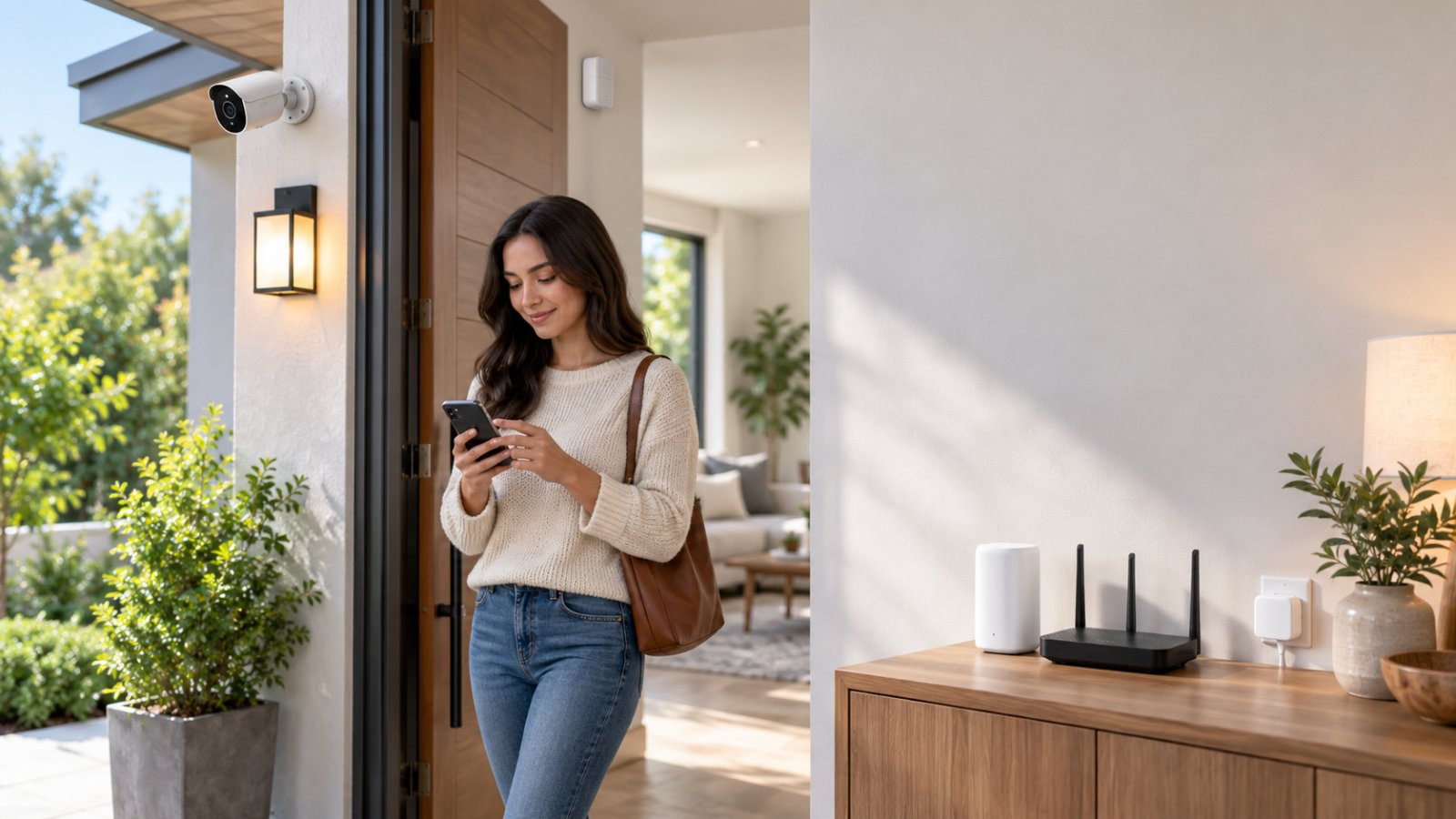
Thread-enabled smart home devices use a low-power wireless network called Thread to communicate with compatible sensors, switches, plugs, locks, and other smart home accessories. Unlike regular WiFi devices, which typically connect directly to a wireless router or access point, Thread devices can use a mesh network to pass messages through other compatible Thread devices.
That matters if you have door sensors that regularly disconnect, a smart plug in a distant room, or several battery-powered accessories that need reliable communication without using much power. Thread can improve connectivity for the right devices, but it does not strengthen your laptop's WiFi signal or fix a security camera that keeps going offline.
Before buying anything, check two things: whether the product actually supports Thread and whether your home has a compatible Thread border router. Some smart speakers and home hubs already include one. Others do not. Getting that distinction right can save you from buying a smart sensor that your existing equipment cannot connect.
What Are Thread-Enabled Smart Home Devices?
Thread-enabled smart home devices are accessories that communicate using the Thread wireless networking protocol.
Thread was designed for connected products that send small amounts of information while using relatively little power.
A door sensor is a useful example.
It needs to report when the door opens or closes. It does not need the bandwidth required to stream a movie, download software, or upload security camera footage.
A temperature sensor works similarly. It sends readings and status information rather than large files.
Thread provides a network suited to these smaller communication tasks.
Common Thread-enabled products include:
-
Door and window contact sensors.
-
Temperature and humidity sensors.
-
Motion and occupancy sensors.
-
Smart plugs.
-
Compatible smart light bulbs.
-
Smart switches.
-
Certain smart locks.
-
Other low-power home automation accessories.
Not every product in these categories uses Thread.
Two smart plugs can look almost identical while using completely different networking technologies.
One might connect directly to WiFi.
Another might use Zigbee.
A third might support Matter over Thread.
The product description should identify the actual connectivity method. If it only says wireless or smart home compatible, that is not enough to confirm Thread support.
How Thread Differs From Ordinary WiFi
WiFi is designed to handle many kinds of network traffic.
Your laptop uses WiFi for video calls. A smart television streams movies over it. An outdoor security camera may send video recordings through the same network.
Those activities can require significant bandwidth.
A contact sensor does not have those requirements.
When a door opens, the sensor generally needs to send a small status message.
Thread is designed to handle this type of communication efficiently.
Thread uses IEEE 802.15.4 radio technology in the 2.4 GHz frequency band.
This creates an important distinction.
Thread and 2.4 GHz WiFi use overlapping radio spectrum, but they are not the same network.
A Thread sensor cannot simply join your router's 2.4 GHz WiFi network.
Likewise, a WiFi extender does not directly extend the Thread mesh.
The devices use different communication protocols, even though they operate in a similar frequency range.
Why Thread Uses a Mesh Network
Imagine a home with a smart plug in the hallway, a compatible light bulb in the living room, and a door sensor near the back entrance.
The back door sensor may be too far from the main Thread border router to communicate reliably over a direct radio link.
If the hallway smart plug supports Thread routing, it may help forward messages between the sensor and the rest of the Thread network.
That is the basic idea behind a smart home mesh network.
Compatible routing devices can provide multiple communication paths.
This can be especially useful in houses with long hallways or rooms separated by walls.
However, the network does not become stronger simply because you add more accessories.
Battery-powered sensors usually operate as end devices. They conserve energy rather than forwarding messages for other products.
If you buy three battery sensors, you should not assume they will extend Thread coverage across the house.
For that, you need suitable Thread routing devices.
Thread Is Not an App or a Subscription
Thread is a networking protocol, not a paid service.
You do not need a monthly Thread subscription to operate the network.
However, an individual smart home product may use an application or offer optional cloud features.
For example, a smart lock might communicate through Thread while its manufacturer offers separate features through an online service.
Those features depend on the product.
Check whether the manufacturer requires an account, charges for optional services, or limits functionality without internet access.
Thread support does not automatically mean a device is completely independent of cloud services.
How a Thread Smart Home Mesh Network Works
A Thread network has several device roles.
Some devices forward messages.
Others communicate through those routing devices.
A Thread border router connects the Thread network to the rest of the home's IP network.
You do not need to memorize the technical terminology to install a smart sensor, but knowing these roles makes troubleshooting easier.
Thread Routers Forward Messages
A Thread router helps move messages between compatible devices.
Certain powered Thread accessories can perform this role.
For example, a compatible smart plug may act as a router within the Thread mesh.
If another suitable route is available, the network may adjust when a connection changes.
This is useful in a home where wireless conditions are not identical in every room.
A sensor behind a thick wall might communicate through a nearby router rather than relying on a distant connection.
But routing depends on the specific device.
Not every powered accessory is a Thread router, and not every Thread-compatible product forwards traffic.
Read the manufacturer's specifications if you are buying a device specifically to improve coverage.
End Devices Communicate Through the Network
End devices typically communicate through a parent Thread router.
They do not normally forward traffic for other devices.
Many battery-powered sensors use this arrangement.
A window sensor, for example, needs to report a change when the window opens or closes.
It does not need to remain fully active in the same way as a powered networking device.
Some Thread end devices use low-power operating modes to conserve their batteries.
That can make Thread attractive for small sensors installed around a home.
However, battery life depends on the actual device.
Frequent communication, weak wireless conditions, temperature, and battery quality can all affect performance.
A Thread logo does not guarantee that a sensor's battery will last a particular number of months or years.
Thread Border Routers Connect Different Networks
A Thread border router connects a Thread network with another IP network, such as your household network.
This allows compatible controllers and devices to communicate across the network boundary.
For example, your iPhone may connect through WiFi while a contact sensor uses Thread.
The border router provides the network connection needed for those devices to communicate through the supported smart home system.
Some smart home hubs and speakers include Thread border router functionality.
Others do not.
Your internet router and Thread border router may be separate devices.
A product can also combine multiple roles, depending on its design.
The Thread Group explains the technology and how Thread border routers connect Thread networks with other IP networks.
More Than One Border Router Can Be Useful
Some homes use multiple Thread border routers.
This can provide additional connectivity options when the devices and network configuration support it.
For example, a compatible border router in the living room and another upstairs may help provide coverage across different parts of a house.
However, buying additional border routers is not always necessary.
Different smart home ecosystems can sometimes maintain separate Thread networks if their credentials and configurations are not shared.
That can complicate setup.
Before buying another hub, check whether your current devices already participate in the same Thread network.
If everything works reliably, there may be no practical reason to change the setup.
Thread vs. Matter vs. WiFi: What Is the Difference?
Thread, Matter, and WiFi are often mentioned together in product descriptions.
They are not competing names for the same technology.
Thread handles low-power networking. Matter provides a common smart home communication standard. WiFi provides wireless network connectivity for many types of devices.
A Matter product might use Thread or WiFi, depending on its design.
Understanding that distinction is essential when purchasing smart home equipment.
Thread Is the Networking Technology
Thread provides an IP-based wireless mesh for compatible low-power devices.
It is designed for communication between accessories such as sensors, switches, and other connected products.
Thread does not define every function the accessory performs.
A Thread-enabled temperature sensor still needs compatible software and controls to display its readings or use them in automations.
That is where other smart home standards and ecosystems become relevant.
Matter Helps Compatible Devices Work Together
Matter is a connectivity standard developed through the Connectivity Standards Alliance.
It defines common ways for supported smart home products to communicate with compatible controllers and ecosystems.
Matter can operate over supported transports including Thread, WiFi, and Ethernet.
For example, one Matter smart plug might connect through Thread.
Another Matter smart plug might connect through WiFi.
Both may work with compatible Matter controllers, but their network requirements differ.
When shopping, look for the complete description.
A product listed as Matter over Thread requires suitable Thread infrastructure.
A product listed as Matter over WiFi uses your compatible WiFi network instead.
WiFi Remains Important
WiFi remains essential for devices that handle larger amounts of data.
Common examples include:
-
Security cameras.
-
Video doorbells.
-
Smart televisions.
-
Laptops.
-
Smartphones.
-
Streaming devices.
-
Other bandwidth-intensive equipment.
A smart security camera may upload continuous video or provide live streaming to a phone.
That requires considerably more bandwidth than a contact sensor reporting an open door.
Thread is not designed as a replacement for typical camera video connectivity.
If your outdoor camera has a weak WiFi connection, a Thread border router will not solve that problem by extending its WiFi signal.
You need to investigate the conventional wireless network or consider wired connectivity.
Thread, Matter, and WiFi Compared
| Feature | Thread | Matter | WiFi |
|---|---|---|---|
| Main function | Low-power device networking | Smart home interoperability | Wireless network connectivity |
| Technology | Wireless mesh protocol | Application connectivity standard | Wireless network technology |
| Typical products | Sensors, plugs, switches, locks | Supported smart home devices | Cameras, phones, TVs, computers |
| Requires a Thread border router | For typical integration with a home IP network | When operating over Thread | No |
| Designed for camera video streaming | No | Depends on device category and transport | Yes |
| Can coexist with other technologies | Yes | Yes | Yes |
The useful shopping question is not simply whether a product supports Matter.
Ask which network it uses and what equipment that network requires.
What You Need to Use Thread-Enabled Smart Home Devices
You do not necessarily need to rebuild your home network to start using Thread.
In many homes, an existing smart home hub already includes the required functionality.
In others, the missing piece is a compatible Thread border router.
Check your equipment before buying accessories.
A Compatible Thread Border Router
For a typical Matter-over-Thread setup, a Thread border router is required to connect the Thread accessories with the household's wider IP network.
Some Apple HomePod and Apple TV models support Thread border routing.
Certain Google Nest products also include this capability.
Other manufacturers provide compatible hubs, routers, and smart home equipment.
The exact model matters.
Do not assume every smart speaker or streaming box from the same manufacturer has identical hardware.
Check the official specifications for the product you own.
If the manufacturer does not explicitly list Thread border router functionality, do not rely on the product's general smart home compatibility as proof.
A Compatible Smart Home Controller
A Matter controller manages supported Matter accessories.
Depending on the ecosystem, the controller may be part of a smart home hub, speaker, display, or another compatible device.
Some hardware performs both the controller and border router roles.
Other setups use separate devices.
For example, your smart home controller might manage accessories while another compatible device supplies Thread border routing.
Before purchasing a new sensor, verify that your system supports the device category and the required network transport.
A hub described as Matter compatible does not automatically include a Thread radio.
A Smartphone With the Correct Application
Most consumer smart home accessories use a phone during initial installation.
The application depends on your ecosystem.
You may use Apple Home, Google Home, or another supported smart home platform.
Some accessories can be paired directly through a Matter setup process.
Others may require initial activation or firmware updates through the manufacturer's application.
Install updates before pairing.
An outdated phone operating system or hub firmware can cause setup failures that look like hardware problems.
A Stable Home Network
Thread creates its own wireless mesh, but the complete smart home still needs suitable communication between controllers, border routers, and other devices.
Network isolation settings can sometimes interfere with discovery or control.
Matter relies on IP networking, and some of its discovery and communication functions require appropriate local network and IPv6 support.
For an ordinary home setup, begin with the manufacturer's recommended router configuration.
Avoid disabling security settings or changing advanced network options just because a device fails its first pairing attempt.
Check the simpler causes first: missing border router support, outdated software, incorrect setup mode, or an accessory that was previously paired elsewhere.
How to Set Up Thread-Enabled Smart Home Devices
A Thread accessory should be installed in stages.
First, confirm the supporting equipment.
Then pair the accessory.
Finally, test it where it will actually be used.
The menu names vary between manufacturers, but the overall process is similar for many Matter-over-Thread devices.
Step 1: Check Your Existing Smart Home Hub
Identify your existing smart home hub or controller.
Find its exact model number.
Review the manufacturer's specifications to confirm whether it supports Thread border routing.
For Apple Home, verify the capabilities of your specific HomePod or Apple TV.
For Google Home, check whether your Nest device provides the required Thread functionality.
Google maintains setup guidance through Google Home Help.
Do not purchase a sensor just because its packaging says it works with your preferred ecosystem.
Confirm the specific connectivity requirements.
A good result: Your setup includes a supported controller and a compatible Thread border router.
A problem result: Your existing hub supports smart home devices but lacks the Thread functionality required by the accessory.
Resolve that difference before attempting installation.
Step 2: Place the Border Router in a Suitable Location
Thread still uses radio signals.
Walls, metal cabinets, distance, and interference can affect coverage.
If possible, place the border router in an open, suitable location rather than hiding it behind heavy furniture.
For a smart speaker with border router functionality, consider which rooms it needs to serve.
A speaker in the living room may provide useful coverage for nearby sensors.
A border router at the far end of a large house may struggle to reach devices near a detached garage.
If the border router is integrated into equipment that must remain beside the internet router, additional compatible Thread routing devices may help reach more distant rooms.
Do not assume that adding more battery-powered sensors will solve a coverage problem.
Step 3: Update the Hub and Phone
Before commissioning a new accessory, check for software updates.
Review:
-
Smartphone operating system updates.
-
Smart home application updates.
-
Hub or controller firmware.
-
Border router firmware where applicable.
-
Accessory firmware through the supported method.
Outdated software can interfere with compatibility or device discovery.
Use official update tools.
If the accessory is brand new, follow the manufacturer's instructions to determine whether its firmware can be updated before or after commissioning.
Avoid repeated factory resets before checking the basic requirements.
Step 4: Add the First Thread Device
For a compatible Matter-over-Thread accessory, the general process is:
-
Power on the accessory or activate its battery.
-
Open the supported smart home application.
-
Select Add Accessory, Add Device, or the equivalent option.
-
Scan the Matter setup code when prompted.
-
Follow the pairing instructions.
-
Wait for the accessory to connect.
-
Select the appropriate room.
-
Give the accessory a recognizable name.
-
Complete setup.
-
Test its primary function.
Some accessories use Bluetooth during the initial commissioning process.
The phone may use that connection to discover the accessory and provide the information required to join the operational network.
Keep the Matter setup code.
It may appear on the device, packaging, or included documentation.
If the device is reset later, you may need that information again.
A good result: The accessory appears in the smart home application and responds correctly.
A problem result: Pairing fails, the controller reports that a border router is missing, or the accessory never becomes available.
If setup fails, confirm compatibility before assuming the accessory is defective.
Step 5: Test the Device Before Permanent Installation
A successful pairing does not prove that the accessory will work in its final location.
If you are installing a door sensor, test it before attaching the adhesive or screws.
Place the sensor near the intended door.
Open and close the door.
Check whether the application reflects the changes.
For a smart plug, turn it on and off through the controller.
For a temperature sensor, verify that a reading appears.
Then move the accessory toward its final position.
If communication becomes unreliable, the problem may involve signal coverage rather than pairing.
Do not permanently mount a sensor where it already fails basic testing.
Step 6: Add More Devices Gradually
Start with the rooms where you actually need connected accessories.
For example, you might install a smart plug in the hallway and a contact sensor near the back door.
After confirming that both work, add another device.
If a distant accessory has weak coverage, investigate whether a suitable powered Thread router could improve the mesh.
Do not buy multiple devices at once solely because they advertise Thread compatibility.
Adding devices gradually makes it easier to identify which product or location causes problems.
Also, keep a simple record of the accessories and their assigned rooms.
Names such as Hallway Lamp or Back Door Sensor are easier to manage than several devices named Smart Plug.
Step 7: Verify Daily Operation
Use the newly installed devices normally.
Check whether:
-
Door sensors report changes.
-
Smart plugs respond to commands.
-
Motion sensors trigger supported automations.
-
Devices remain available in the application.
-
The border router stays connected.
-
Battery status is displayed where supported.
Observe the system after ordinary household events, such as restarting the internet router or moving furniture.
If a device works during setup but disconnects repeatedly afterward, investigate the final mounting position.
A smart home device should work reliably where it is installed, not only when you hold it beside the hub.
Thread-Enabled Smart Home Devices for Different Rooms
Thread is useful across many parts of a home, but the right product depends on the task.
A hallway may benefit from a powered routing device.
A bedroom may need only a temperature sensor.
A garage may present a more difficult radio environment.
Plan around the room rather than purchasing the same accessories everywhere.
Living Room: Smart Plugs and Lighting
Living rooms often contain lamps, switches, and other connected accessories.
A compatible Thread smart plug can receive on and off commands through the network.
A Thread-enabled light bulb may participate in supported lighting automations.
For example, a lamp could turn on according to a schedule or respond to a compatible occupancy sensor.
Check how the accessory works with your chosen smart home controller.
Some products support their basic Matter features across multiple ecosystems while keeping certain advanced functions inside the manufacturer's application.
Read the feature information before buying.
Bedroom: Temperature and Contact Sensors
Bedrooms often benefit from devices that operate quietly in the background.
A temperature sensor can report changing conditions.
A window contact sensor can indicate whether the window is open or closed.
These devices usually exchange small messages.
That makes them suitable candidates for low-power networking.
If using battery-powered accessories, check the battery type and how replacement works.
A sensor mounted behind difficult-to-move furniture may be inconvenient when its battery needs changing.
Also review whether the device requires a separate temperature display or only reports information through the smart home application.
Hallway: Powered Mesh Devices
A hallway can be useful for connecting rooms in a Thread mesh.
If a suitable Thread routing device is installed there, it may help forward messages between compatible accessories.
For example, a smart plug in the hallway could provide a network path between a border router in the living room and a sensor farther away.
That depends on the device supporting the routing role.
Not every powered smart plug does.
If your purpose is improving coverage, confirm the routing capability before purchasing.
Place the device where it has suitable radio connectivity rather than hiding it inside a metal cabinet.
Garage: Understand the Distance and Obstacles
Garages can be difficult wireless environments.
Concrete walls, metal doors, storage cabinets, and distance from the main house may weaken communication.
A Thread door sensor might work reliably near the garage entrance if there is sufficient mesh coverage.
But if the garage is detached and far from the house, a single sensor may not maintain a connection.
Check the actual distance and obstacles.
A suitable Thread routing device may help if a usable wireless path can be established.
However, a standard WiFi extender does not directly extend Thread.
If you also have a garage security camera, troubleshoot its WiFi or wired connection separately.
Do Thread Devices Reduce WiFi Congestion?
Thread devices do not need to connect individually to the WiFi access point when they communicate through their Thread network.
This can reduce the number of smart accessories associated with your WiFi network.
However, that does not mean switching a few sensors to Thread will dramatically improve internet speed.
Fewer Low-Power Devices on WiFi
Consider a household with many connected sensors and switches.
If all those accessories use WiFi, each one requires a connection through the WiFi infrastructure.
Using suitable Thread devices shifts their low-power communication onto a separate mesh.
This can simplify network organization.
It may also reduce certain WiFi traffic and device-management demands.
However, many ordinary smart sensors send very small amounts of data.
If your laptop experiences poor WiFi because the router is far away or the signal is blocked by thick walls, moving a few sensors onto Thread is unlikely to fix it.
Thread Cannot Fix Slow Internet
Thread does not increase the speed supplied by your internet provider.
It does not improve the WiFi radio inside your laptop.
It also does not provide extra bandwidth for streaming video.
If your home office connection is slow, investigate:
-
Router position.
-
Wireless signal strength.
-
Local network congestion.
-
Broadband performance.
-
Access point coverage.
-
Ethernet connectivity.
Thread solves a different problem.
When conventional WiFi coverage is the concern, suitable routers, access points, or extenders are more relevant.
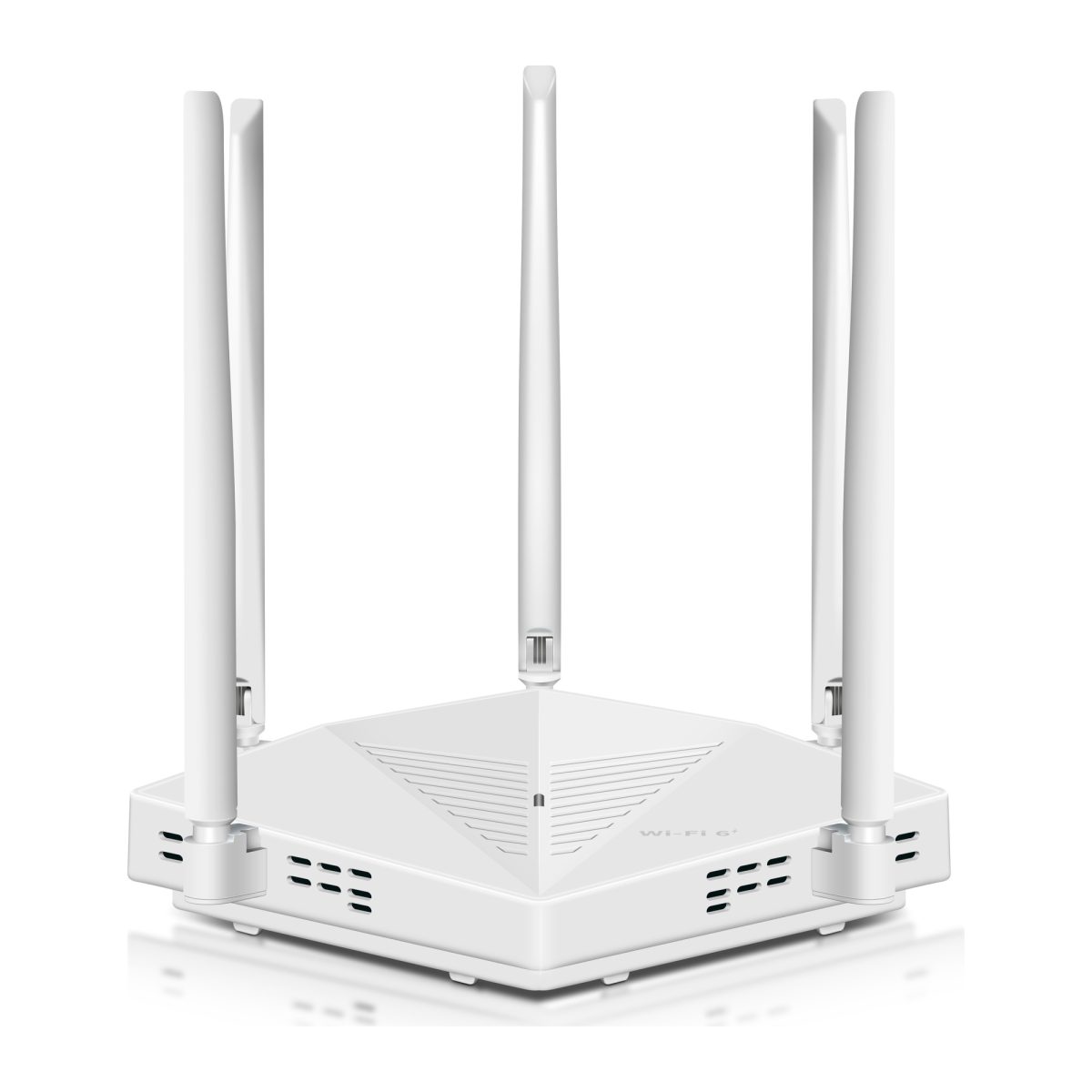
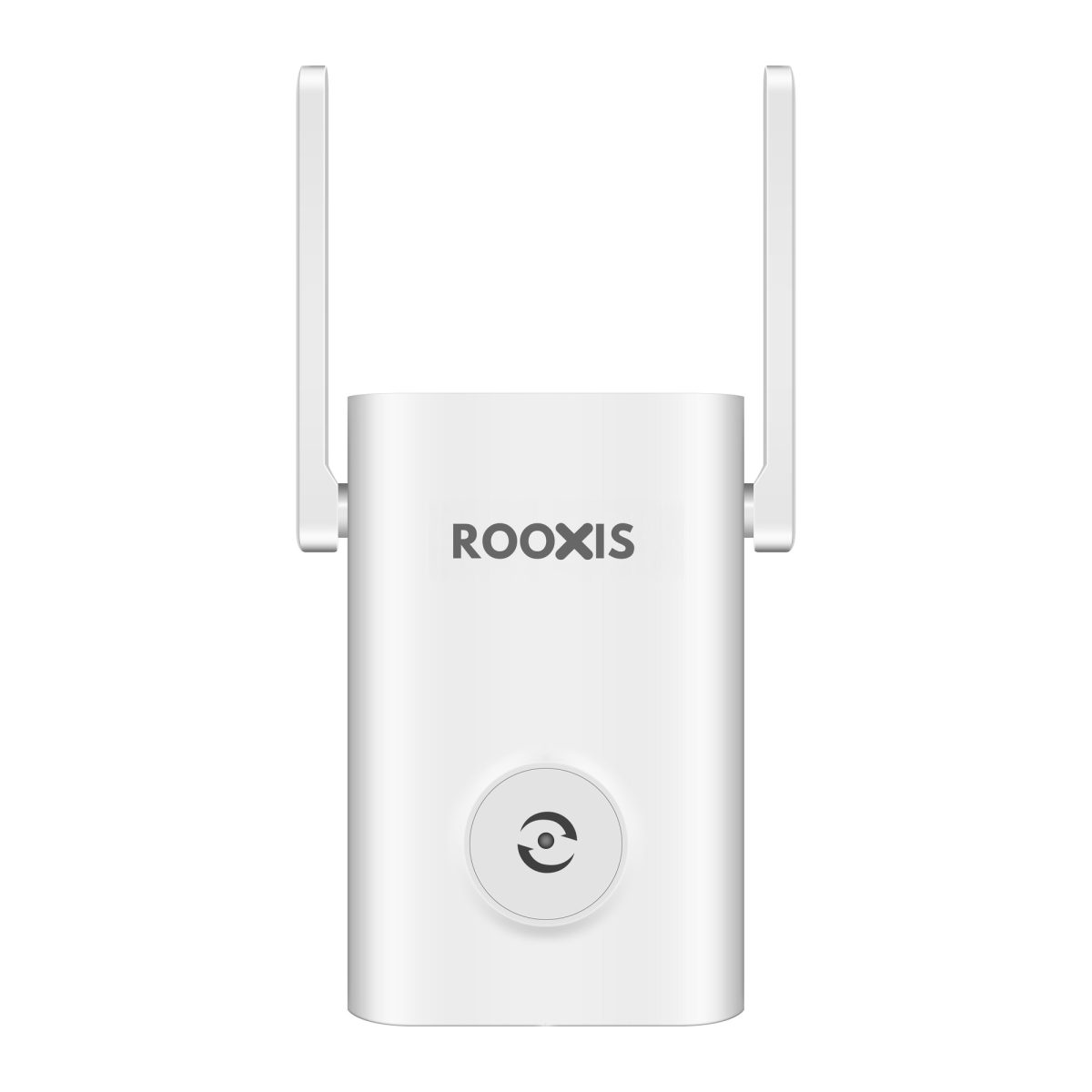
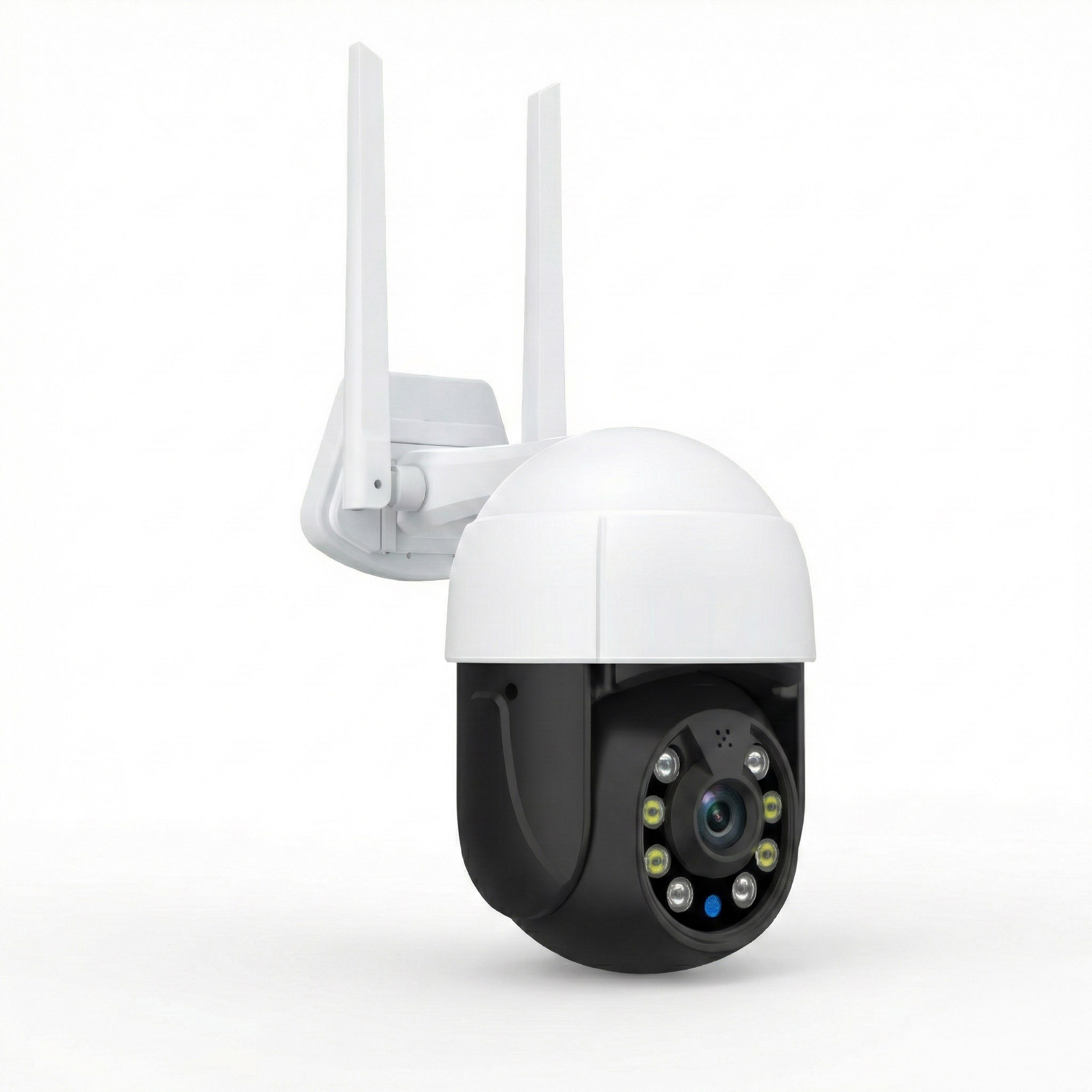
You can review home networking and camera equipment through ROOXIS when you need to improve WiFi connectivity rather than Thread mesh coverage.
Thread and WiFi Can Still Interfere With Each Other
Thread and 2.4 GHz WiFi operate in overlapping radio spectrum.
They use different network protocols, but their radio transmissions can still affect one another under certain conditions.
For example, a crowded 2.4 GHz environment may make communication more difficult.
Interference depends on channel use, equipment placement, signal strength, and surrounding devices.
Do not immediately change advanced wireless settings when a sensor disconnects.
First check that the accessory is within range and that its border router and parent Thread router are available.
If interference appears likely, follow the equipment manufacturer's recommended troubleshooting steps.
Common Problems With Thread Smart Home Devices
Most Thread setup problems involve compatibility, network discovery, placement, or supporting infrastructure.
The error message may mention the accessory, but the actual problem can be somewhere else.
Start with the simplest checks before resetting equipment.
The Device Says a Thread Border Router Is Required
This usually means the setup process cannot find suitable Thread border routing support.
Check whether your hub includes the required functionality.
A smart home hub may support Matter over WiFi without providing Thread border routing.
Verify the exact hardware model.
Make sure the border router is powered on and configured.
Apple documents related setup problems in its Thread border router support article.
If your current equipment does not support Thread, choose a compatible border router rather than repeatedly attempting the same pairing process.
The Matter Device Will Not Pair
Check whether the accessory is powered and in pairing mode.
Make sure the phone has Bluetooth enabled if the setup process requires it.
Confirm that the controller and application are updated.
Check the Matter setup code.
If the accessory was previously paired, it may need to be shared from the existing controller or reset according to the manufacturer's instructions.
Do not reset it immediately if you want to preserve existing settings.
Also verify the product's platform compatibility.
A Matter device may support the standard while some functions or setup requirements depend on the controller and software version.
The Device Works Near the Hub but Not in Another Room
This often points to a wireless coverage issue.
Move the accessory closer to a known working Thread router.
Test whether it becomes available.
Then examine the original position.
Possible obstacles include:
-
Reinforced concrete.
-
Thick masonry.
-
Metal shelving.
-
Large appliances.
-
Long distances.
-
Dense building materials.
-
Other sources of radio interference.
If coverage needs improvement, consider a suitable Thread routing device.
Do not assume a battery sensor or ordinary WiFi extender will perform that function.
Devices Appear Offline After a Router Restart
Your Thread mesh and the main home network are connected through the border router.
If the internet router or related networking equipment restarts, the smart home controller may temporarily lose access to some devices.
Wait for the network equipment to finish restarting.
Then check the border router's status.
Open the smart home application again.
If several accessories appear offline at the same time, investigate shared equipment before resetting individual sensors.
Resetting every accessory can create unnecessary work and may erase established configurations.
A Battery Sensor Responds Slowly
Some battery-powered Thread devices use low-power communication modes.
They may not behave exactly like devices connected to permanent power.
However, persistent delays or missed events deserve investigation.
Check the battery level.
Confirm that the sensor remains within reliable Thread coverage.
Review the parent routing device's availability.
Check for supported firmware updates.
If the device misses door-open events or repeatedly becomes unavailable, do not dismiss the issue as normal low-power behavior without checking the cause.
Multiple Smart Home Platforms Cannot See the Same Device
Matter supports sharing compatible devices across supported smart home ecosystems through multi-admin functionality.
But sharing is not always automatic.
Adding an accessory to Apple Home does not necessarily make it appear immediately in Google Home.
You may need to use the first platform's supported sharing procedure.
The second platform must also support the device category and applicable features.
Multiple ecosystems can sometimes create separate Thread networks.
If the device cannot be added to another platform, review the controller compatibility and network-sharing process before resetting the accessory.
Common Misconceptions About Thread-Enabled Smart Home Devices
Thread is frequently described as a solution to every smart home connectivity problem.
That creates unrealistic expectations.
It works well for certain devices and network conditions, but it does not replace every existing technology.
Thread Replaces Your WiFi Router
Thread does not replace your broadband router.
Your phones, computers, security cameras, and many other devices still use WiFi or Ethernet.
A Thread border router connects the Thread mesh to the wider IP network.
It is not automatically an internet router or WiFi access point.
You can use Thread and WiFi in the same household without replacing either technology.
Every Matter Device Uses Thread
Matter supports multiple network transports.
Some Matter devices use Thread.
Others use WiFi or Ethernet.
The Matter label does not tell you which radio technology the product uses.
Check whether the specifications say Matter over Thread or Matter over WiFi.
That detail determines what networking equipment you need.
Every Thread Device Extends the Mesh
A battery-powered Thread sensor generally does not serve as a router for other devices.
It usually communicates through a parent router.
Some compatible mains-powered Thread accessories can help forward traffic.
If network extension is your goal, choose a device with verified routing capability.
Simply adding more sensors may not improve coverage.
Thread Makes Every Smart Home Device Faster
Thread can provide efficient communication for compatible low-power accessories.
But actual responsiveness depends on the entire system.
A delayed automation may involve the controller, an online service, or the device itself.
Replacing one accessory with a Thread model does not guarantee faster operation.
Investigate where the delay occurs before purchasing replacement equipment.
Thread Devices Always Work Without Internet
Some Thread communication and local automation functions may continue when the internet is unavailable.
However, the complete smart home experience depends on the controller, accessory, and integration.
Remote access may stop working.
Certain cloud-dependent features may become unavailable.
Some automations may require services that are not accessible offline.
Check the manufacturer's documented offline behavior rather than assuming Thread guarantees every feature without internet service.
How to Choose Thread-Enabled Smart Home Devices
Start with the problem you want to solve.
If a door sensor keeps disconnecting, you may benefit from a different connectivity approach.
If a WiFi camera has poor signal strength, Thread is not the right replacement.
Buying equipment around a specific use case is more effective than replacing every smart home accessory simply because a new networking standard is available.
Check Thread and Matter Support
Read the connectivity specifications carefully.
If you need Matter over Thread, confirm that both are supported.
Do not rely on broad claims such as works with smart homes.
Check whether the device supports your chosen controller.
Also review which features are available through Matter and which require the manufacturer's application.
A smart accessory may support basic controls across several platforms while offering additional configuration only through its own software.
Check the Border Router Requirement
Find the exact model of your existing hub or speaker.
Verify its Thread border router capability through official documentation.
If it lacks that feature, determine whether purchasing a border router is worthwhile for the number of Thread devices you plan to install.
For one inexpensive sensor, replacing several pieces of equipment may not make financial sense.
For a larger installation involving compatible low-power accessories, the infrastructure may be more useful.
Check Whether the Device Runs on Batteries
Battery-powered accessories need occasional maintenance.
Check:
-
Battery type.
-
Replacement procedure.
-
Manufacturer battery life guidance.
-
Battery status reporting.
-
Temperature limitations.
-
Whether the device remains accessible after installation.
A window sensor mounted high above a staircase may be inconvenient when its battery needs changing.
Choose placement and equipment with future maintenance in mind.
Check Local Control and Privacy Features
Review how the accessory handles communication and account requirements.
Find out whether it works locally through your controller or depends on a manufacturer cloud service for particular features.
Check whether an account is required.
Review the privacy policy.
Thread includes networking security mechanisms, but it does not determine every aspect of a manufacturer's data handling.
A device can use secure Thread communication while still relying on optional online services.
Evaluate those services separately.
Check Installation Requirements
Some smart home accessories are simple to install.
A door sensor may use adhesive.
A smart plug may connect directly to a suitable outlet.
Other devices require more work.
A smart wall switch may involve household electrical wiring.
A smart lock may require precise mechanical alignment.
Do not attempt wiring changes without the appropriate knowledge and authorization.
Use a qualified electrician when required.
For renters, check whether the installation is reversible and permitted under the rental agreement.
Start With One Device
A first Thread accessory should solve a real problem.
For example, choose a compatible door sensor for an entrance you want to monitor.
Confirm that your border router and controller support it.
Pair the sensor.
Test it at the intended location.
Use it for several days and check whether it remains available.
If it works reliably, expand the installation gradually.
This reduces the risk of buying several incompatible devices and trying to troubleshoot them all at once.
When Thread Is Worth Using and When WiFi Is Better
Thread and WiFi are useful for different kinds of connected products.
A house does not need to use one technology exclusively.
The right choice depends on bandwidth, power, coverage, and device compatibility.
Choose Thread for Low-Power Sensors and Controls
Thread is well suited to compatible accessories that exchange small messages.
These may include:
-
Door sensors.
-
Window sensors.
-
Temperature sensors.
-
Motion sensors.
-
Smart switches.
-
Smart plugs.
-
Certain smart locks.
The main advantages are low-power communication and the ability to use suitable mesh routing devices.
For battery-powered products, that can be especially useful.
Choose WiFi or Ethernet for Cameras
Security cameras transmit far more data than ordinary sensors.
Live video and recorded footage require substantial network capacity.
WiFi and Ethernet are generally better suited to those requirements.
If an outdoor camera frequently loses connection, investigate its wireless coverage.
Check router placement, obstacles, and available network infrastructure.
A suitable WiFi extender or access point may help.
For some installations, Ethernet is preferable.
A Thread border router does not directly extend the camera's WiFi connection.
Use Both Technologies in the Same Home
A practical smart home might use:
-
Thread sensors on doors and windows.
-
Thread smart plugs for lamps.
-
A WiFi camera overlooking the driveway.
-
Ethernet for a desktop computer.
-
A compatible controller for supported automations.
There is no need to move everything to Thread.
Keep devices on the networking technology that fits their requirements.
A smart home works best when each connection is reliable and the equipment is compatible.
FAQ
What are Thread-enabled smart home devices?
Thread-enabled smart home devices are connected accessories that use the low-power Thread networking protocol. Common examples include sensors, smart plugs, switches, and certain locks. Compatible Thread routers can help forward messages through a mesh, while a border router connects that network with the rest of the home.
Do Thread devices need a special router?
For a typical Matter-over-Thread installation, you need a compatible Thread border router. Some smart home hubs, speakers, and other devices already include this functionality. A standard WiFi router does not automatically support Thread unless that specific model provides the required capability.
Is Thread better than WiFi for smart home devices?
Thread is often a better fit for compatible low-power sensors and controls that exchange small messages. WiFi is more suitable for higher-bandwidth equipment such as cameras and televisions. The right choice depends on the device's purpose, power requirements, and network coverage.
Are Thread and Matter the same thing?
No. Thread is a low-power wireless mesh networking protocol, while Matter is a smart home connectivity standard. Matter can work over Thread, WiFi, or Ethernet depending on the product. A Matter device does not necessarily require a Thread border router unless it uses Thread.
Can Thread devices work when the internet is down?
Some local Thread communication and supported smart home automations can continue during an internet outage. However, remote access, cloud integrations, and certain controller features may stop working. The exact behavior depends on the accessory, controller, border router, and how the automation is configured.
Will a Thread border router improve my WiFi camera signal?
No. A Thread border router connects the Thread mesh with another IP network, but it does not function as a conventional WiFi extender. If a security camera has weak WiFi coverage, check router placement, signal obstacles, compatible extenders, access points, or wired networking instead.
Thread-enabled smart home devices are worth considering when you need low-power, reliable communication for compatible sensors, plugs, switches, and other household accessories.
Before purchasing, check whether your current equipment includes a Thread border router and whether the accessory supports your smart home controller.
Install one device first. Test it where it will be used, confirm that it stays connected, and add more accessories only when the setup is working properly.
Keep WiFi or Ethernet for cameras and other higher-bandwidth equipment. Use Thread where its low-power mesh design solves a specific connectivity need.